Note
You are viewing the documentation for an older release of Interworx (8.0). To see documentation for the current generally available release of Interworx, click here: 8.2.
How To: Create and Manage SiteWorx Accounts
The InterWorx Control Panel is divided into two main tools: NodeWorx and SiteWorx. NodeWorx is the server administrator and reseller interface, and SiteWorx is the website administrator interface.
When the server administrator or reseller wants to create a website, they create a SiteWorx Account. Each SiteWorx account is mapped to an IP and a unique unix user on the server. A SiteWorx account can be permitted to have multiple domains.
From the NodeWorx interface, the server administrator or reseller can also log directly into a SiteWorx account and bypass authentication.
SiteWorx accounts are accessed via https://domain.com:2443/siteworx. If DNS for the domain does not yet
resolve to the server, the server’s IP address or hostname can be used in place of the domain to access the
interface.
Note
Accessing the server over port 2443 automatically uses the SSL certificate for the internal InterWorx
webserver. Because of this, using https://domain.com:2443/siteworx to access SiteWorx may result in a
security warning in the browser, even if the domain has its own SSL certificate. Using the server IP or
hostname in place of the domain will work around that warning.
To Add a SiteWorx Account
Log into NodeWorx from the browser (https://ip.ad.dr.ess:2443/nodeworx)
In NodeWorx, navigate to SiteWorx > Accounts

Click + or Add SiteWorx Account. This opens the SiteWorx Account Management form
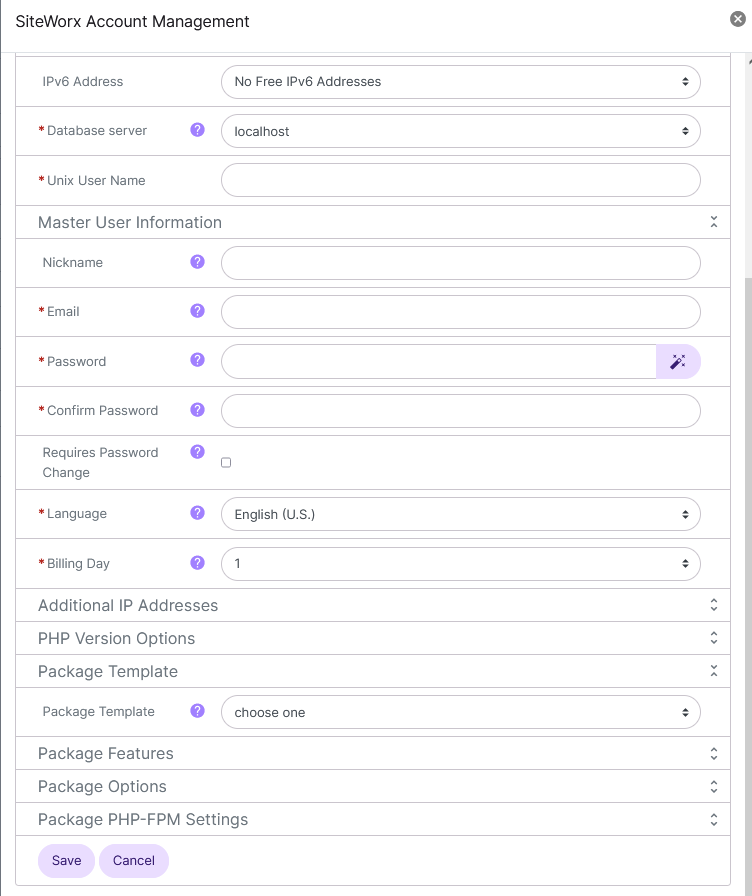
Update the required fields. These include:
Master Domain: The SiteWorx account master domain
Note
The domain name should be entered without the ‘www’ prefix. The ‘www’ prefix will be properly dealt with by the underlying system.
IP Address: The IP Address used by the domain
Database Server: The database server associated with the SiteWorx account
Unix User Name: The unix user that will own the SiteWorx account’s content. By default, this is automatically generated based on domain name. It can be manually selected, as well
Nickname: (Optional) The name that will appear in the list of SiteWorx accounts
E-mail Address: The e-mail address of the SiteWorx account owner. This is the SiteWorx login and point of contact for the account
Password: The password for the SiteWorx account owner
Requires Password Change: If selected, the SiteWorx account owner will be prompted to change their password upon first login
Language: The default language of the SiteWorx account
Billing Day: The day of each month that the billing cycle starts. This is also the day the bandwidth counter resets each month for the SiteWorx account
Additional IP Addresses: Additional IP addresses that may be assigned to domains under the SiteWorx account
PHP Version: The PHP version that domains under the SiteWorx account will use by default
Available PHP Versions: Selected PHP versions will be available for domains under the SiteWorx account
Package Features: If SiteWorx Packages have been created, they can be selected from the Package Template dropdown. This will auto-fill the Package Features and Package options for the account
If a package has not been created, the options will have to be manually set. However, checking the Create New Package box will create a new package from the manually selected options
For details about each SiteWorx Package Feature, see SiteWorx Package Overview
Access to Softaculous: Whether the account is able to use Softaculous as a package installer
If No is selected, the SiteWorx account will not have access to Softaculous
Click Save
To Log Into a SiteWorx Account from NodeWorx
Log into NodeWorx from the browser (https://ip.ad.dr.ess:2443/nodeworx)
In NodeWorx, navigate to SiteWorx > Accounts
Click the Door next to the SiteWorx Account. This opens the SiteWorx account in a new window
To Edit a SiteWorx Account
Log into NodeWorx from the browser (https://ip.ad.dr.ess:2443/nodeworx)
In NodeWorx, navigate to SiteWorx > Accounts
Click the Pencil next to the SiteWorx account. This opens the SiteWorx Accounts Management form
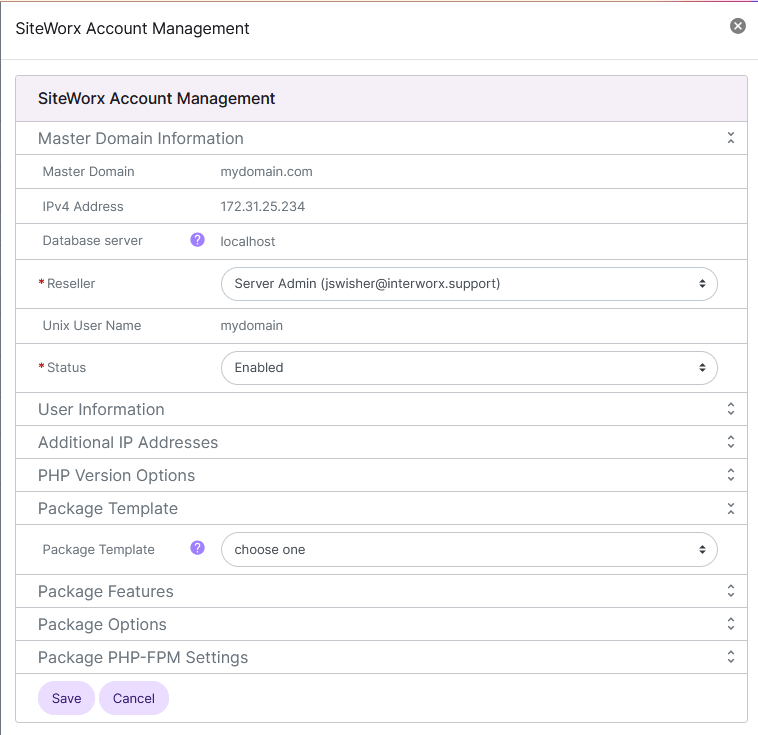
Modify the desired values
Click Save
To Suspend a SiteWorx Account
From the Accounts List
Log into NodeWorx from the browser (https://ip.ad.dr.ess:2443/nodeworx)
In NodeWorx, navigate to SiteWorx > Accounts
Click the three vertical dots next to the SiteWorx account. This opens an options form
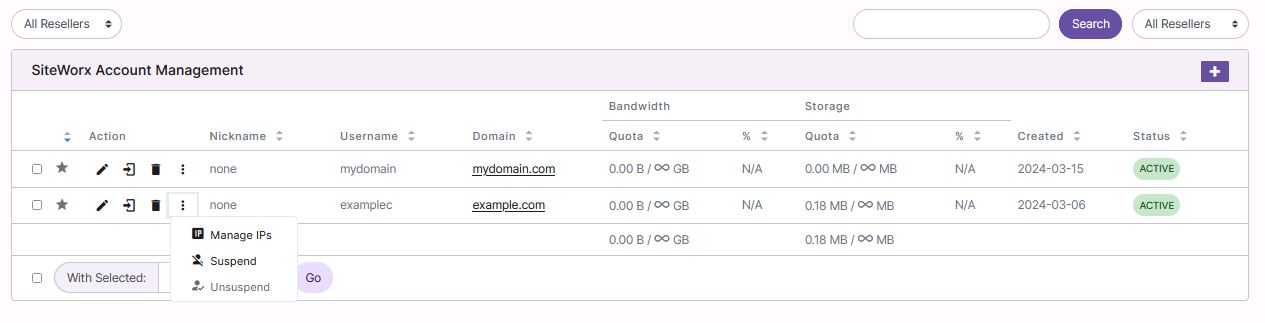
Select Suspend. This opens the Confirm Suspension form
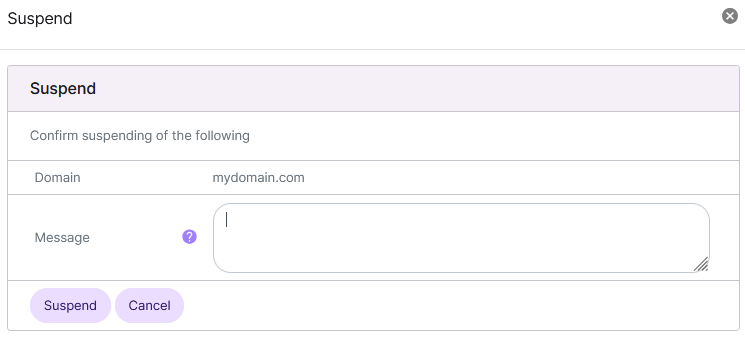
(Optional) Update the Message field with the reason for the account suspension
Click Suspend
From the With Selected Dropdown
Log into NodeWorx from the browser (https://ip.ad.dr.ess:2443/nodeworx)
In NodeWorx, navigate to SiteWorx > Accounts
Select the checkbox next to the SiteWorx account(s)
Selecting the checkbox next to the With Selected dropdown will automatically select all accounts
Select Suspend from the With Selected dropdown at the bottom of the page
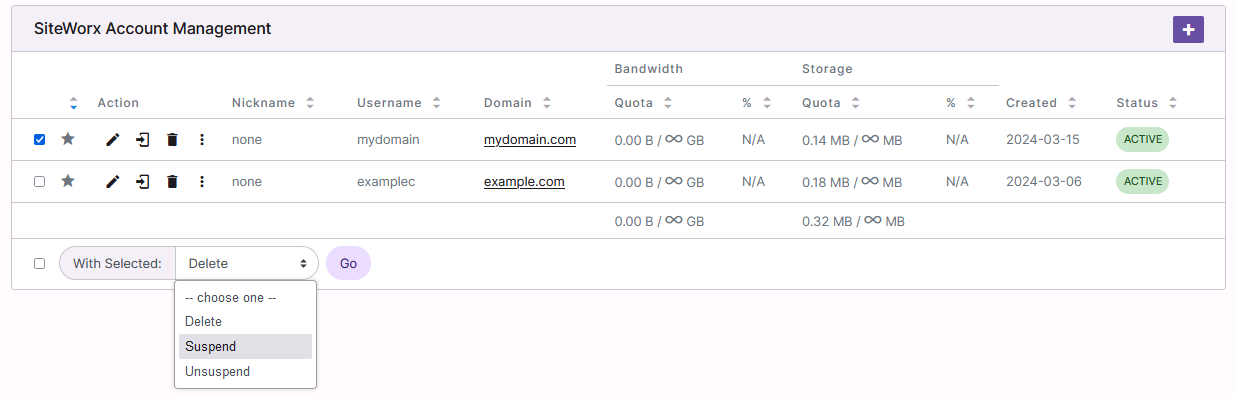
Click Go. This opens the Confirm Suspension form
(Optional) Update the Message field with the reason for the account suspension
Click Suspend
To Unsuspend a SiteWorx Account
Note
Access to the account will be granted after the next fively cron runs. As such, it may take up to five minutes for the account to be accessible.
If access is desired sooner, this step can be manually completed by running the cron at the CLI:
~iworx/cron/iworx.pex --fively
From the Accounts List
Log into NodeWorx from the browser (https://ip.ad.dr.ess:2443/nodeworx)
In NodeWorx, navigate to SiteWorx > Accounts
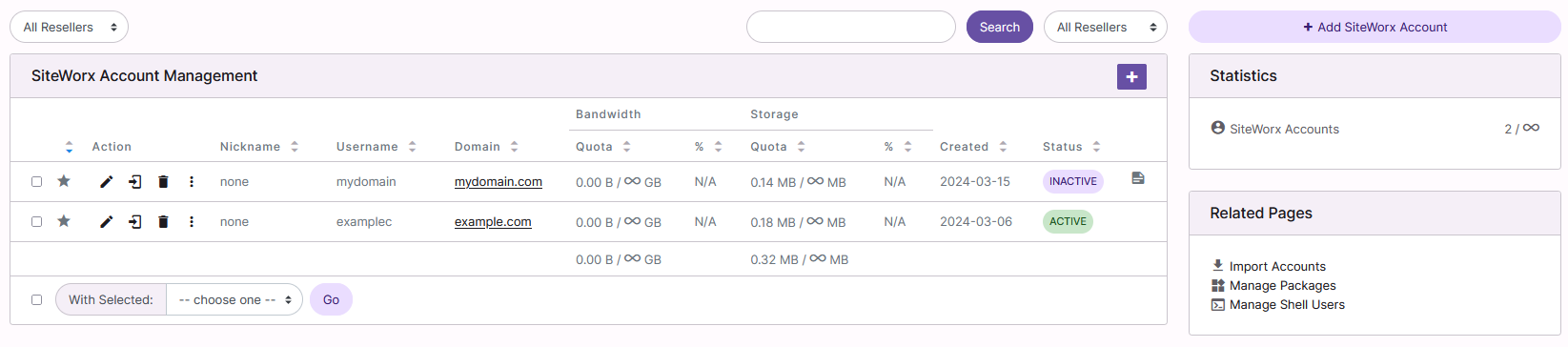
Click the three vertical dots next to the SiteWorx account. This opens an options form
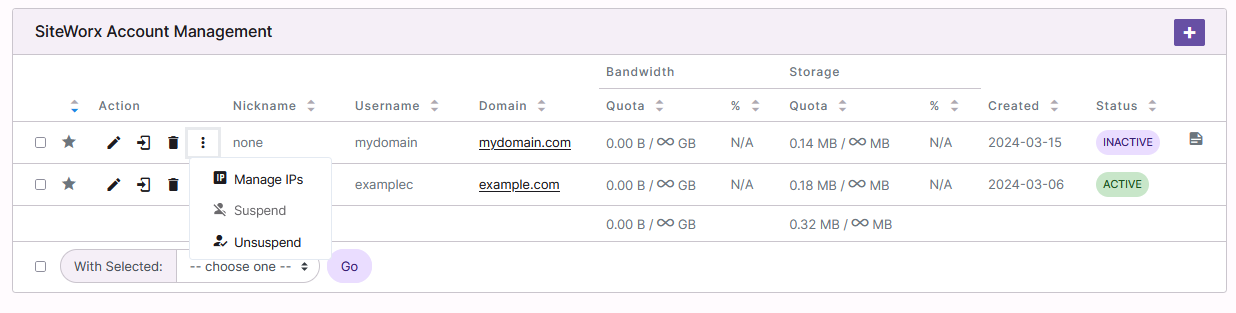
Select Unsuspend. This opens the Confirmation form
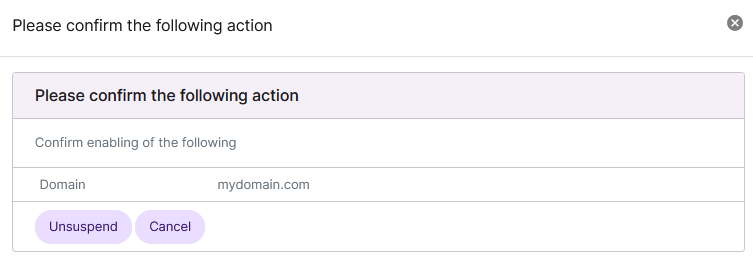
Click Unsuspend
From the With Selected Dropdown
Log into NodeWorx from the browser (https://ip.ad.dr.ess:2443/nodeworx)
In NodeWorx, navigate to SiteWorx > Accounts
Select the checkbox next to the SiteWorx account(s)
Selecting the checkbox next to the With Selected dropdown will automatically select all accounts
Select Unsuspend from the With Selected dropdown at the bottom of the page
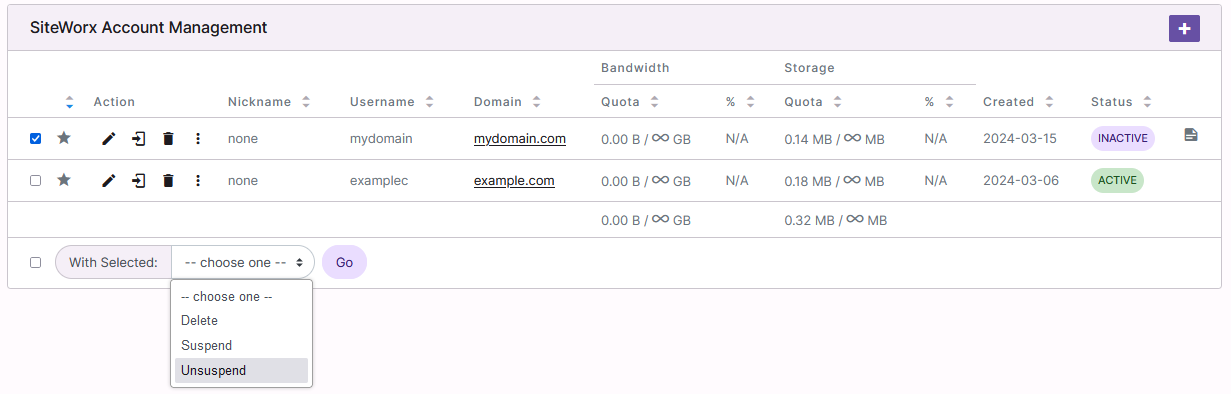
Click Go. This opens the Confirm Suspension form
Click Unsuspend
To Delete a SiteWorx Account
Warning
Note: Deleting a SiteWorx account will delete all of the files and data associated with that account.
From the Accounts List
Log into NodeWorx from the browser (https://ip.ad.dr.ess:2443/nodeworx)
In NodeWorx, navigate to SiteWorx > Accounts
Select the Trashcan next to the account. This opens the Confirm Deletion form
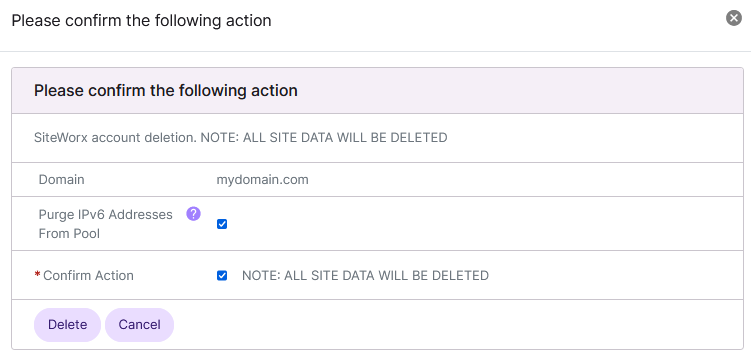
Select the Confirm Action checkbox
Click Delete
From the With Selected Dropdown
Log into NodeWorx from the browser (https://ip.ad.dr.ess:2443/nodeworx)
In NodeWorx, navigate to SiteWorx > Accounts
Select the checkbox next to the account(s)
Selecting the checkbox next to the With Selected dropdown will automatically select all accounts
Select Delete from the With Selected dropdown
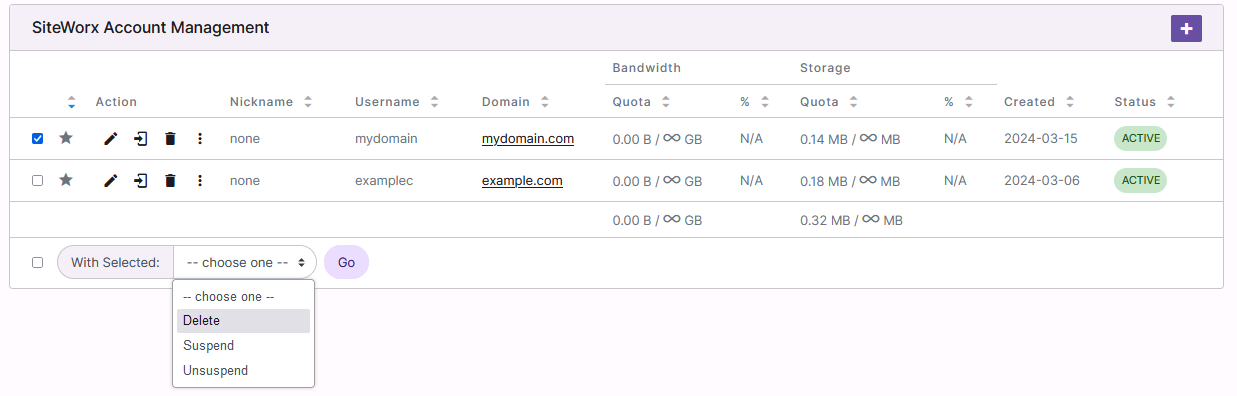
Click Go. This opens the Confirm Deletion form
Select the Confirm Action checkbox
Click Delete