Messages Sent to Server Are Not Delivered to the Inbox
How the Issue Manifests
Messages sent to the server do not arrive in the users’ inboxes. The messages also do not show on the Mail Queue page in NodeWorx (System Services > Mail Server > Mail Queue).
The message can be seen entering the server via the logs found in the /var/log/smtp directory, but there is no
concurrent logging in the logs found in the /var/log/send directory, showing that the message was processed.
Cause of the Issue
The most common cause of this issue is that ClamAV is stopped, but SMTP scanning is enabled in the Virus Scanning page in NodeWorx (System Services > Mail Server > Virus Filtering).
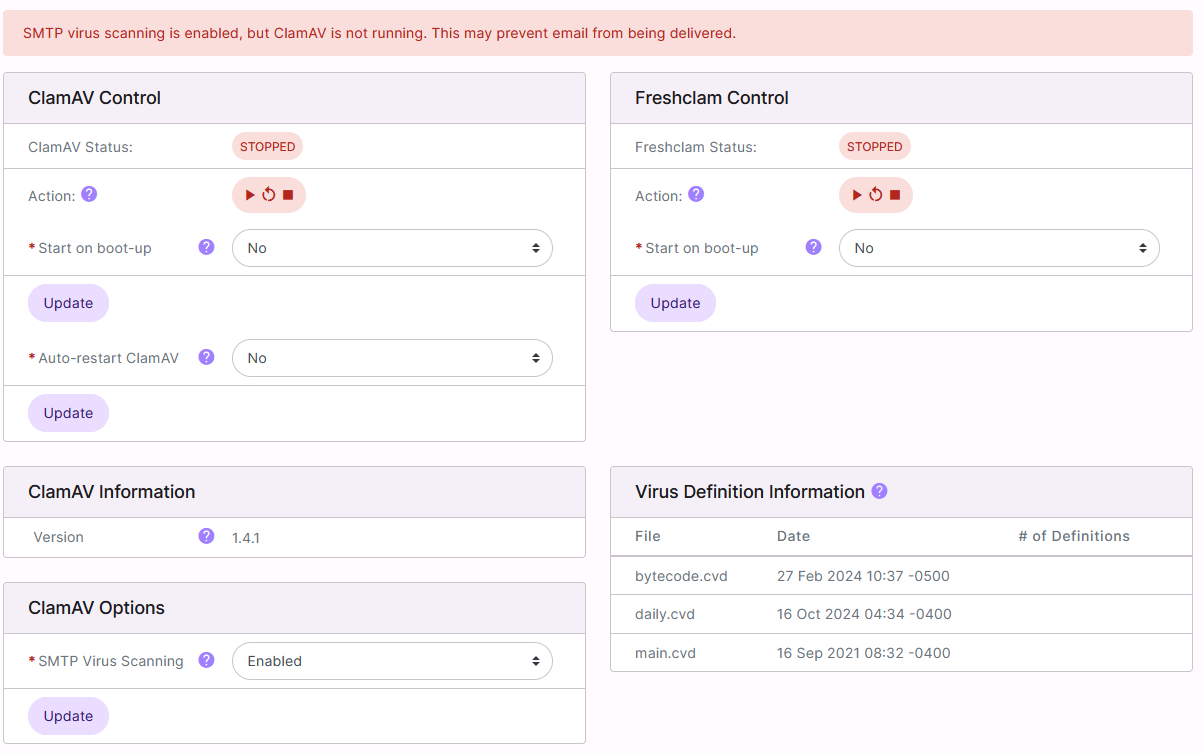
The mail service expects the incoming messages to be scanned as they enter the server, but the service meant to scan them is not running.
Note
A problem detector was added in versions 7.13.51 and 8.0.26 to identify this mismatch. This can be seen on the System Health page in NodeWorx (Server > System Health). The problem detector will also send emails alerting to the issue, based on the configuration set for the problem detector on the System Health page.

How to Resolve
Log into NodeWorx from the browser (https://ip.ad.dr.ess:2443/nodeworx)
Navigate to System Services > Mail Server > Virus Filtering
Click the Play icon to start the ClamAV service
Alternately, select Disabled from the SMTP Scanning dropdown and then click Update
Other Considerations
The most common reason for ClamAV being stopped is due to a lack of sufficient memory. ClamAV stores its database in RAM, and it is generally at least 1GB in size. This is why swap is required on all InterWorx servers, so that other services can move their memory to swap when ClamAV is running.
If ClamAV does not start, adding more RAM, and/or enabling swap may be required.
To check the free memory and if swap has been enabled on the server:
Log in to the server at the CLI as root, either via SSH or from the terminal
Use the
free -mcommand to check how much memory is free and if swap has been enabledfree -m
Example on a server that does not have swap enabled and is not in compliance with the minimum requirements for InterWorx:
[root@server~]# free -m
total        used        free      shared  buff/cache   available
Mem:            3579        1031        2431          81         416        2547
Swap:              0           0           0
[root@server ~]#
Things to Keep in Mind
While this documentation describes the most common reason for messages entering the server not being delivered to the inbox, it is not the only reason such a thing could occur.
If the above steps do not resolve the issue, please submit a ticket to https://support.interworx.com.