How To: Use Email Filters in SiteWorx
From the Mail Filter page in SiteWorx, users can block messages from specific senders or with specific subjects. They can also manage whether blocked messages are sent to Spam, or simply deleted.
To Change Delivery Options For Filtered Messages
Log into SiteWorx from the browser (https://ip.ad.dr.ess:2443/siteworx)
In SiteWorx, navigate to Administration > Mail Options > Filters, either from the side menu or SiteWorx home
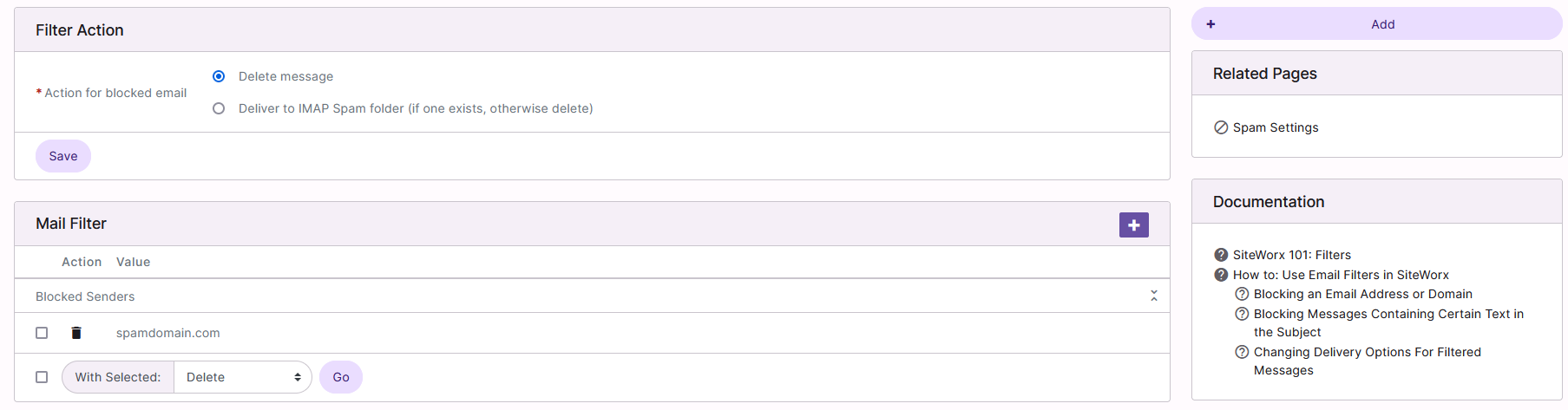
Under Filter Action, select the desired option from the Action For Blocked Email setting:

Delete Message: Deletes the messages
Deliver to IMAP Spam Folder: Delivers the message to the Spam folder, if one exists. If there is not a Spam folder, the message is deleted
Click Save
To Block an Email Address or Domain
Log into SiteWorx from the browser (https://ip.ad.dr.ess:2443/siteworx)
In SiteWorx, navigate to Administration > Mail Options > Filters, either from the side menu or SiteWorx home
Click the + or Add Filter. This opens the Email Filter Rules form
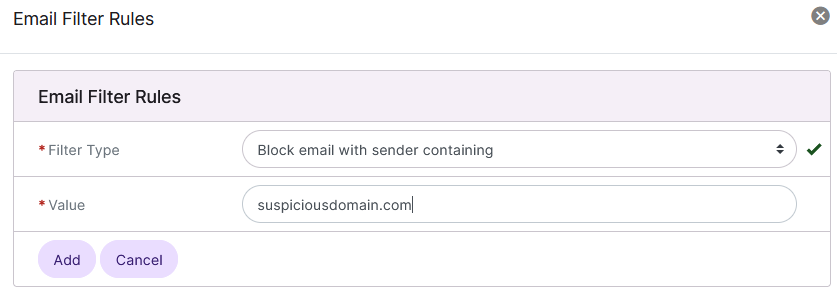
Select Block email with sender containing from the Filter Type dropdown
Update the Value field with the email address or domain to be blocked
Click Add
To Block Messages Containing Certain Text in the Subject
Log into SiteWorx from the browser (https://ip.ad.dr.ess:2443/siteworx)
In SiteWorx, navigate to Administration > Mail Options > Filters, either from the side menu or SiteWorx home
Click the +. This opens the Email Filter Rules form
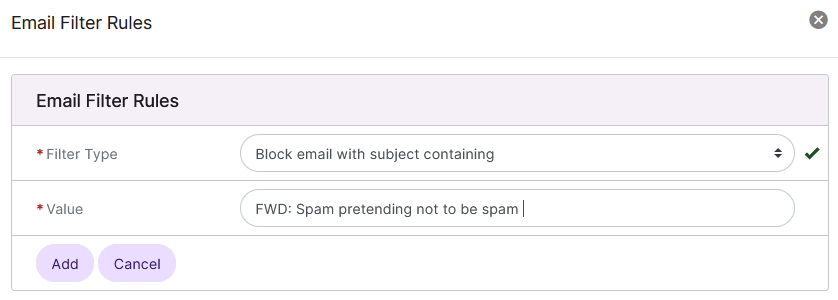
Select Block email with a subject containing fro the Filter Type dropdown
Update the Value field with the subject to be blocked
Click Add
To Delete Filers
From the Filter List
Log into SiteWorx from the browser (https://ip.ad.dr.ess:2443/siteworx)
In SiteWorx, navigate to Administration > Mail Options > Filters, either from the side menu or SiteWorx home
Click the trashcan next to the filter. This opens the Confirmation form
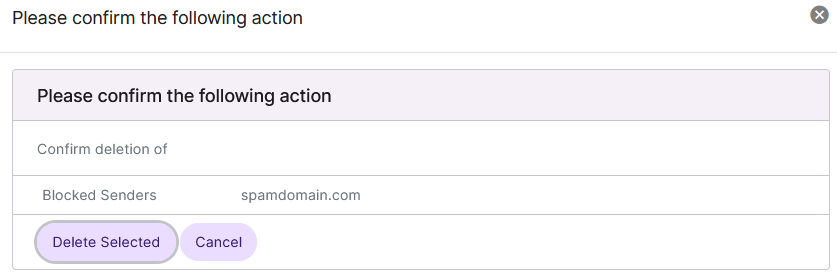
Click Delete
From the With Selected Dropdown
Log into SiteWorx from the browser (https://ip.ad.dr.ess:2443/siteworx)
In SiteWorx, navigate to Administration > Mail Options > Filters, either from the side menu or SiteWorx home
Select the checkbox next to the filter(s)

Selecting the checkbox next to the With Selected dropdown will automatically select all filters
Select Delete from the With Selected dropdown
Click Go. This opens the Confirmation form
Click Delete