How To: Manage DomainKeys
DomainKeys is a system meant to authenticate e-mail messages to reduce spoofing, etc.
SiteWorx users are able to manage Domain Keys (DKIM) from the Administration menu in SiteWorx.
To Add a DomainKey
Log into SiteWorx from the browser (https://ip.ad.dr.ess:2443/siteworx)
In SiteWorx, navigate to Administration > Mail Options > DKIM, either from the side menu or SiteWorx home

Click + next to the domain to add the DKIM key to. This opens the Enable DKIM form
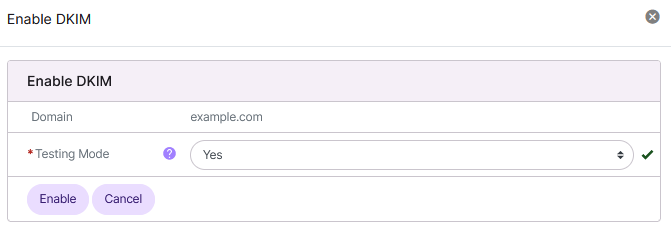
Select Yes or No from the Testing Mode dropdown. If enabled, this specifies that DomainKeys are being tested for the domain, and unverified e-mail will not be treated any differently from verified e-mail
Click Enable
To Edit a DomainKey
Log into SiteWorx from the browser (https://ip.ad.dr.ess:2443/siteworx)
In SiteWorx, navigate to Administration > Mail Options > DKIM, either from the side menu or SiteWorx home

Click Pencil next to the domain to edit. This opens the Edit DKIM form
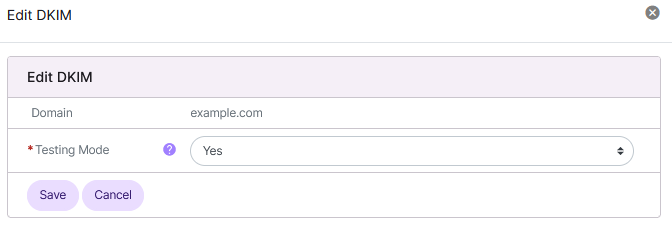
Select Yes or No from the Testing Mode dropdown. If enabled, this specifies that DomainKeys are being tested for the domain, and unverified e-mail will not be treated any differently from verified e-mail
Click Save
To Delete a DomainKey
From the DomainKeys List
Log into SiteWorx from the browser (https://ip.ad.dr.ess:2443/siteworx)
In SiteWorx, navigate to Administration > Mail Options > DKIM, either from the side menu or SiteWorx home
Click Trashcan next to the domain to delete the DKIM for. This opens the Confirmation form
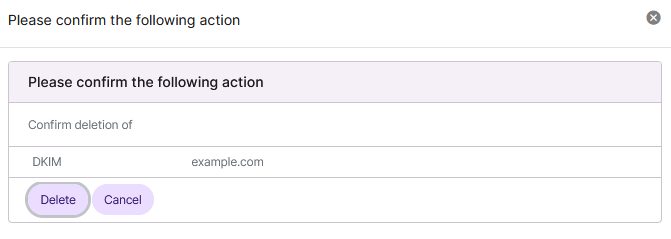
Click Delete
From the With Selected Dropdown
Log into SiteWorx from the browser (https://ip.ad.dr.ess:2443/siteworx)
In SiteWorx, navigate to Administration > Mail Options > DKIM, either from the side menu or SiteWorx home
Select the checkbox next to the Domainkey(s)
Selecting the checkbox next to the With Selected dropdown will automatically select all keys
Select Delete from the With Selected dropdown
Click Go. This opens the Confirm Deletion form
Click Delete