Note
You are viewing the documentation for an older release of Interworx (8.0). To see documentation for the current generally available release of Interworx, click here: 8.2.
How To: Manage MySQL Databases
From the SiteWorx interface, SiteWorx users can create and manage MySQL databases.
By default, all databases created in SiteWorx will be prefixed by the SiteWorx account unix username. While it is not possible to create non-prefixed databases from within SiteWorx, users with shell access may do so from the CLI.
To Manage MySQL Databases
Adding a Database
From the Databases Page
Log into SiteWorx from the browser (https://ip.ad.dr.ess:2443/siteworx)
In SiteWorx, navigate to Hosting Features > MySQL > Databases, either from the side menu or SiteWorx home

Click + or Add a MySQL Database. This opens the Add a MySQL Database form
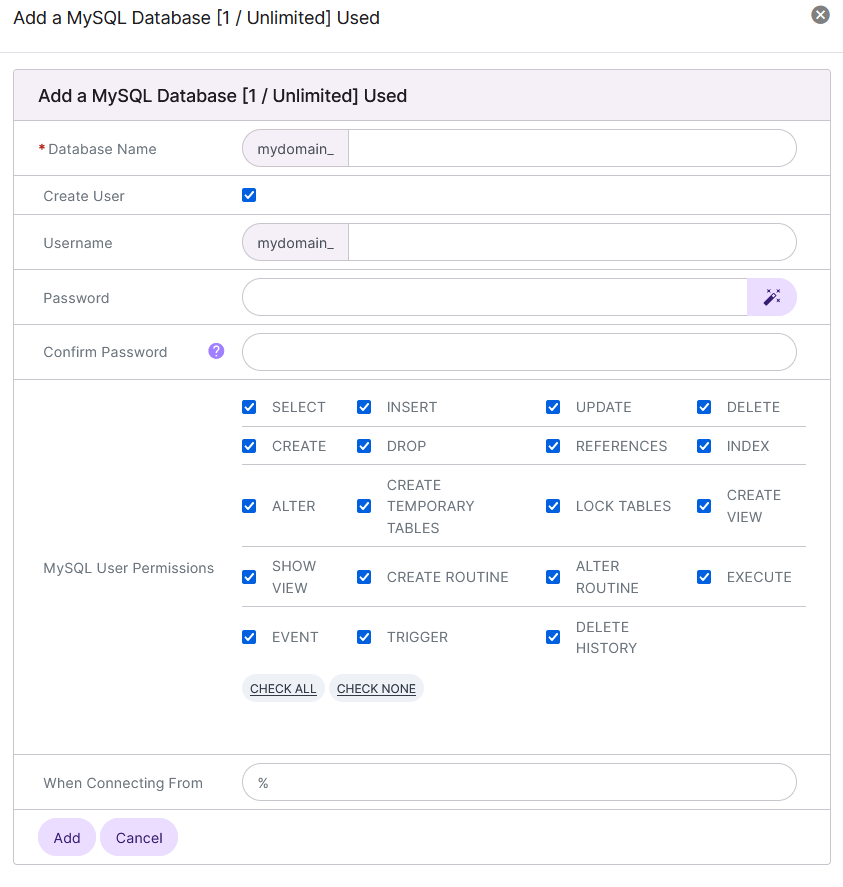
Update the desired fields:
Database Name: The name of the database. SiteWorx will automatically append the unix username of the SiteWorx to the database name provided
Note
Database names must not include periods. For example
my.databasewill not be accepted as a valid database name.Create User: Checking this box will expand the form to include database user options. Creating a database user for the new wordpress database is recommended
Password/Confirm Password: The password for the database user. Clicking the Magic Wand will automatically generate a secure password
MySQL User Permissions: The permissions the database user should have
When Connecting From: The host the database user will connect from. % is the default, which is a wildcard
Click Add
From the Add a MySQL Database Icon
Log into SiteWorx from the browser (https://ip.ad.dr.ess:2443/siteworx)
In SiteWorx, click Add a MySQL Database. This opens the Add a MySQL Database form
Update the desired fields:
Database Name: The name of the database. SiteWorx will automatically append the unix username of the SiteWorx to the database name provided
Create User: Checking this box will expand the form to include database user options. Creating a database user for the new wordpress database is recommended
Password/Confirm Password: The password for the database user. Clicking the Magic Wand will automatically generate a secure password
MySQL User Permissions: The permissions the database user should have
When Connecting From: The host the database user will connect from. % is the default, which is a wildcard
Click Add
Deleting a Database
From the Database List
Log into SiteWorx from the browser (https://ip.ad.dr.ess:2443/siteworx)
In SiteWorx, navigate to Hosting Features > MySQL > Databases, either from the side menu or SiteWorx home
Click the Trashcan icon next to the database to delete. This opens the Confirmation form
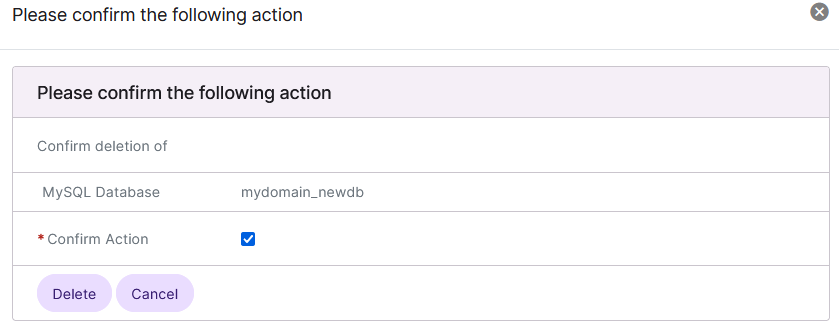
Select the Confirm Action checkbox
Click Delete
From the With Selected Dropdown
Log into SiteWorx from the browser (https://ip.ad.dr.ess:2443/siteworx)
In SiteWorx, navigate to Hosting Features > MySQL > Databases, either from the side menu or SiteWorx home
Select the checkbox next to the database(s)
Selecting the checkbox next to the With Selected dropdown will automatically select all databases
Select Delete from the With Selected dropdown
Click Go. This opens the Confirm Deletion form
Click Delete
To Manage MySQL Database Permissions
Adding Database User Permissions
Log into SiteWorx from the browser (https://ip.ad.dr.ess:2443/siteworx)
In SiteWorx, navigate to Hosting Features > MySQL > Databases, either from the side menu or SiteWorx home
Click the Person icon next to the Database. The opens the User Permissions page
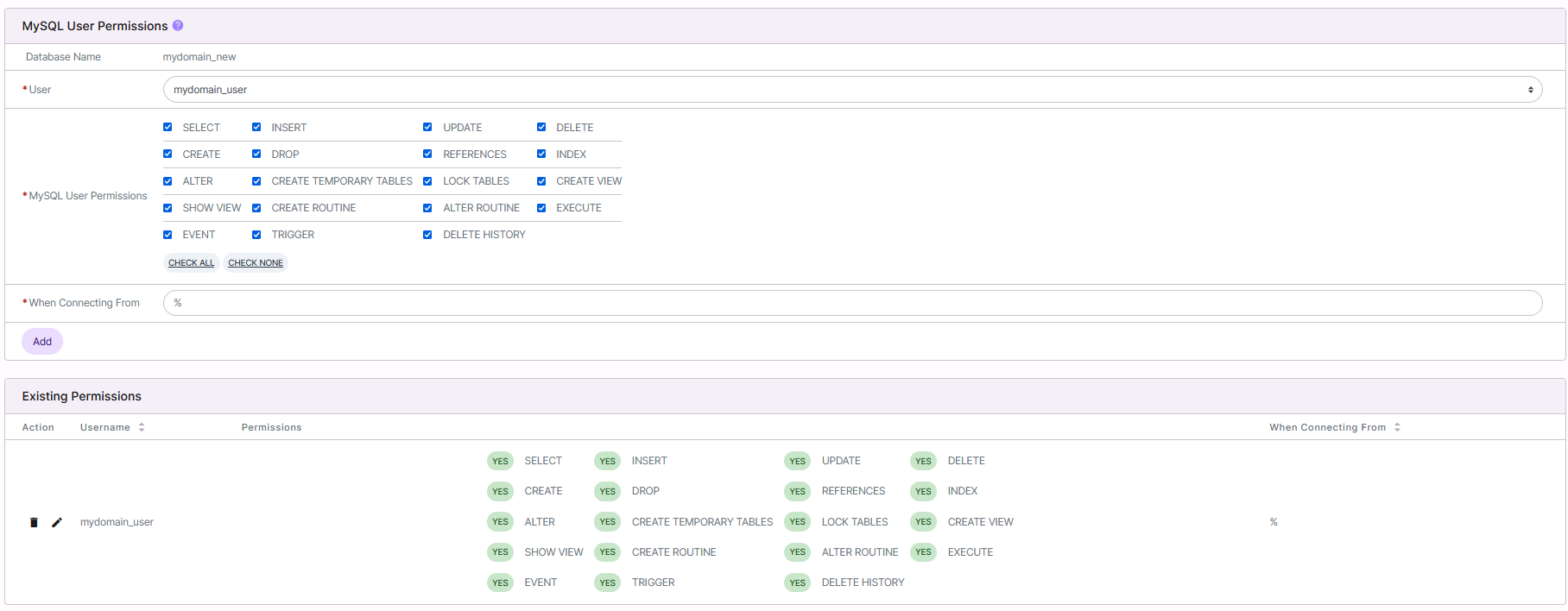
Update the required fields:
User: The user that will be added to the database
MySQL User Permissions: The permissions the database user should have
When Connecting From: The host the database user will connect from. % is the default, which is a wildcard
Click Add
Editing Database User Permissions
Log into SiteWorx from the browser (https://ip.ad.dr.ess:2443/siteworx)
In SiteWorx, navigate to Hosting Features > MySQL > Databases, either from the side menu or SiteWorx home
Click the Person icon button next to the Database. The opens the User Permissions page
Under Existing Permissions, click the Pencil button next to the MySQL user. This opens the MySQL User Permissions form
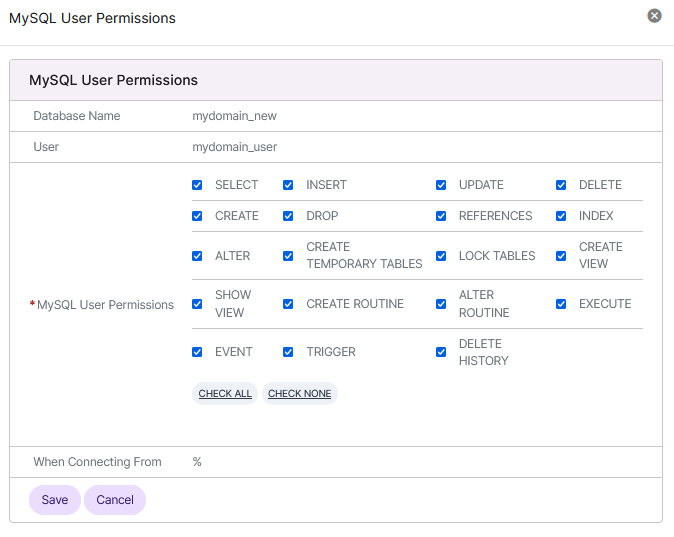
Update the desired permissions
Click Save
Deleting Database User Permissions
Log into SiteWorx from the browser (https://ip.ad.dr.ess:2443/siteworx)
In SiteWorx, navigate to Hosting Features > MySQL > Databases, either from the side menu or SiteWorx home
Click the Person icon button next to the Database. The opens the User Permissions page
Click the Trashcan button next to the MySQL user. This opens the confirmation form
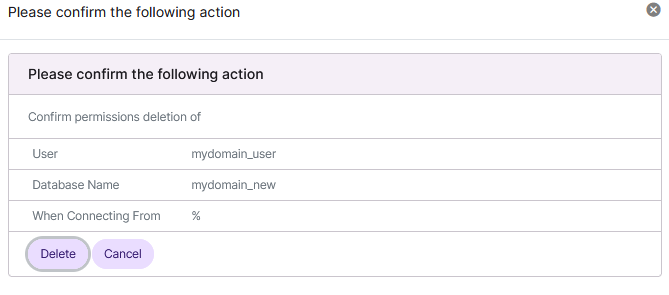
Click Delete