Note
You are viewing the documentation for an older release of Interworx (8.0). To see documentation for the current generally available release of Interworx, click here: 8.2.
How To: Enable the Catchall Plugin
A catchall email address receives messages sent to any non-existent inboxes for that domain.
In order for a catchall email address to be configurable within SiteWorx, the Catchall plugin must first be enabled, and permission must be granted to the SiteWorx account by the NodeWorx system administrator.
Warning
Catchall messages count as a delivered messages. As such, enabling this option has the side effect of potentially validating all attempted spam addresses as “good”. Also, if a lot of mail goes through the account, the mailbox can easily, and quickly, fill with potentially thousands of messages, if it is not monitored. As such, setting a catchall email address, while possible, is not recommended.
To Manage the Catchall Plugin
Log into NodeWorx from the browser (https://ip.ad.dr.ess:2443/nodeworx)
In NodeWorx, navigate to NodeWorx > Plugins
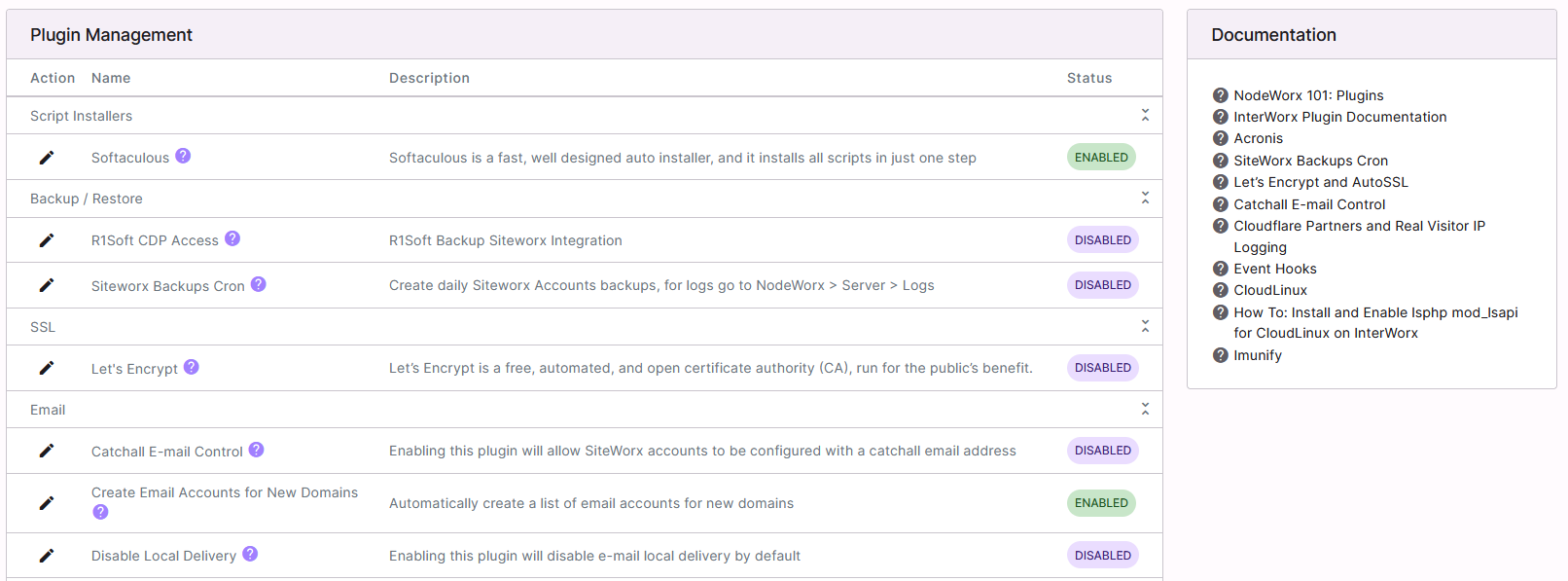
Under Email, click the Pencil next to Catchall Email Control. This opens the Edit Plugin form

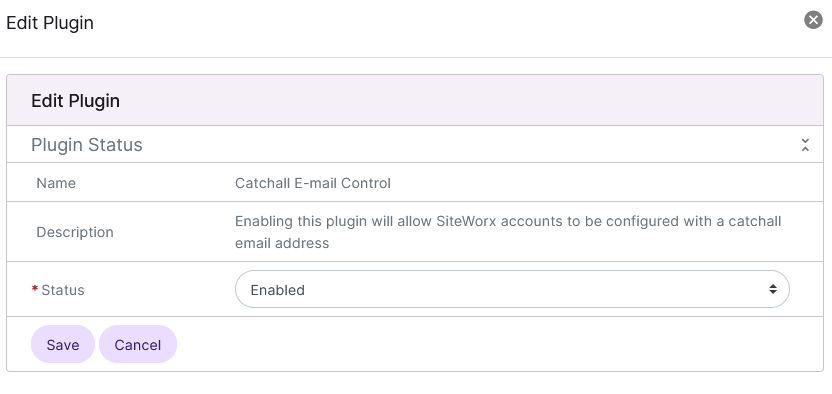
Select either Enabled or Disabled from the Status dropdown
Click Save
To Manage Catchall Settings for a SiteWorx Account
Log into NodeWorx from the browser (https://ip.ad.dr.ess:2443/nodeworx)
From NodeWorx, navigate to SiteWorx > Accounts
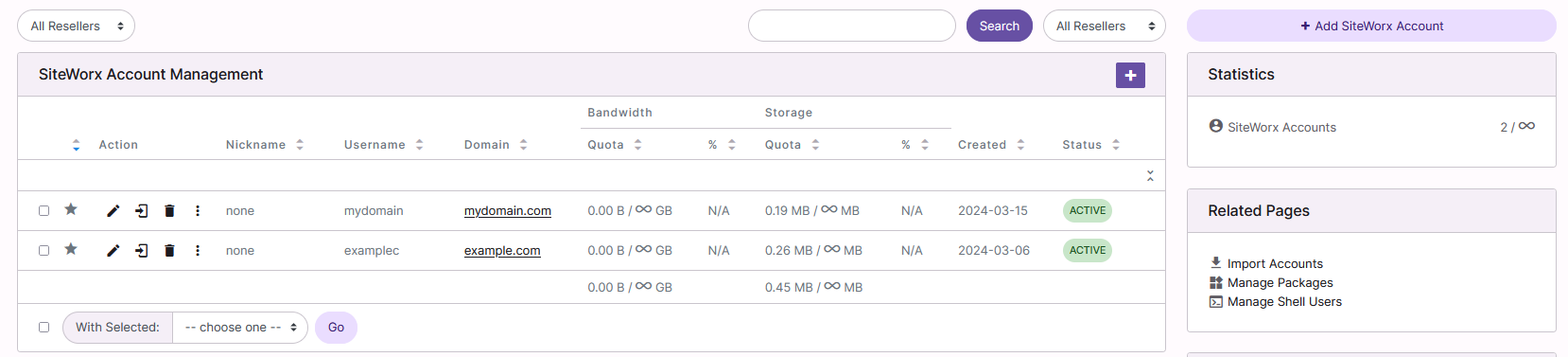
If creating a new SiteWorx account, click + or Add SiteWorx Account
If editing an existing SiteWorx account, click the Pencil next to the account. This opens the SiteWorx Account Management form
At the bottom of the form, Under Email Catchall Settings, select either Yes or No from the Account Can Set an Email Catchall Address dropdown
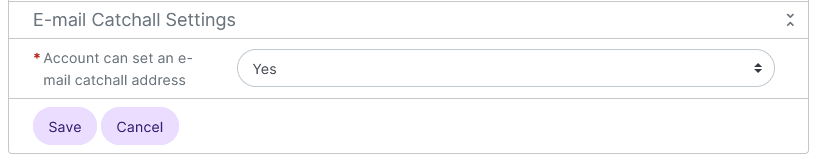
Click Save