How To: Manage SiteWorx Users
From the User Accounts page in SiteWorx, the master SiteWorx user can create secondary users to help manage some, or all, aspects of the SiteWorx account.
To Add a Secondary SiteWorx User
Log into SiteWorx from the browser (https://ip.ad.dr.ess:2443/siteworx)
In SiteWorx, navigate to Administration > User Accounts, either from the side menu or SiteWorx home

Click + or Add SiteWorx User. This open the Add SiteWorx User form

Update the required fields:
Nickname: The nickname of the new user
Email: The email address for the new user. This serves as the user’s SiteWorx login and must not belong to another SiteWorx user
Password/Confirm Password: The password for the new user. To automatically generate a password, click the Magic Wand
Requires Password Change: If selected, the first time the user logs in via the browser, they will be forced to change their password
Language: The default language for the user
User Permission: The permissions that the user is assigned. For full privileges click Check All
Locked Domains: Users may be locked to a subset of domains. This field is a comma separated list of domains, and may additionally use the negation operator (!) and the wildcard (*)
SSH Enabled: Determines if the user has SSH access
Click Save
To Edit a Secondary User
Log into SiteWorx from the browser (https://ip.ad.dr.ess:2443/siteworx)
In SiteWorx, navigate to Administration > User Accounts, either from the side menu or SiteWorx home
Click the Pencil next to the user. This opens the Edit SiteWorx User from

Update the desired fields
Click Save
To Deactivate a SiteWorx User
Log into SiteWorx from the browser (https://ip.ad.dr.ess:2443/siteworx)
In SiteWorx, navigate to Administration > User Accounts, either from the side menu or SiteWorx home
Select the checkbox next to the user(s)
Selecting the checkbox next to the With Selected dropdown will automatically select all users
Select Deactivate from the With Selected dropdown
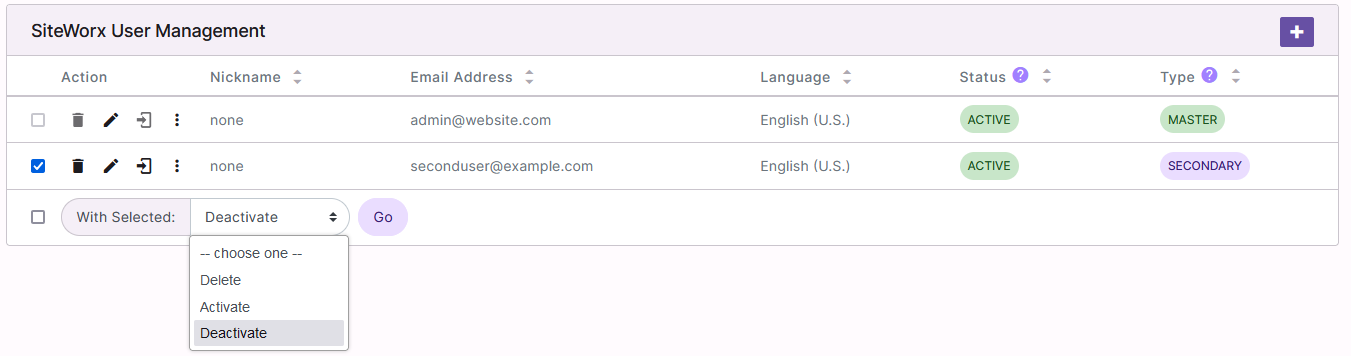
Click Go. This opens the Confirm Deletion form
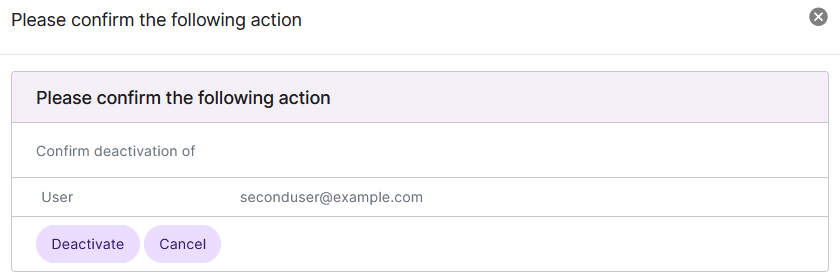
Click Deactivate
To Activate a SiteWorx User
Log into SiteWorx from the browser (https://ip.ad.dr.ess:2443/siteworx)
In SiteWorx, navigate to Administration > User Accounts, either from the side menu or SiteWorx home
Select the checkbox next to the user(s)
Selecting the checkbox next to the With Selected dropdown will automatically select all users
Select Activate from the With Selected dropdown
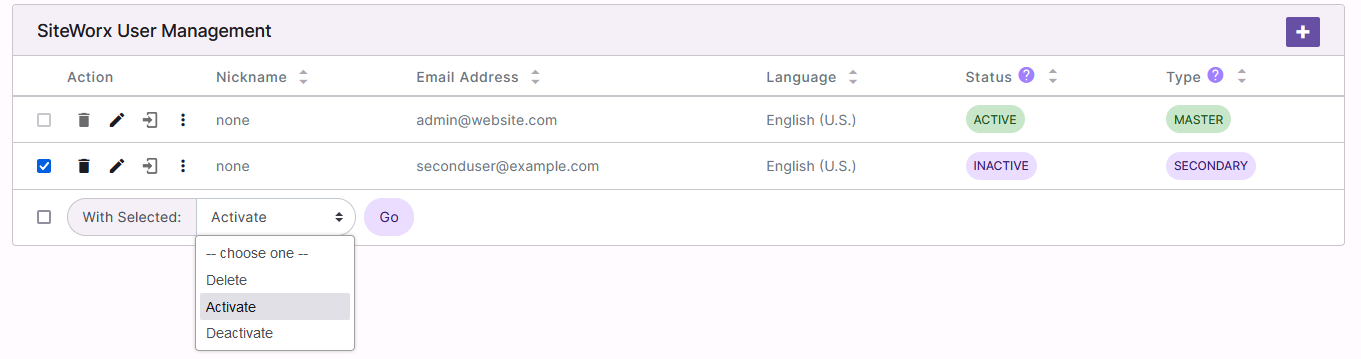
Click Go. This opens the Confirm Deletion form
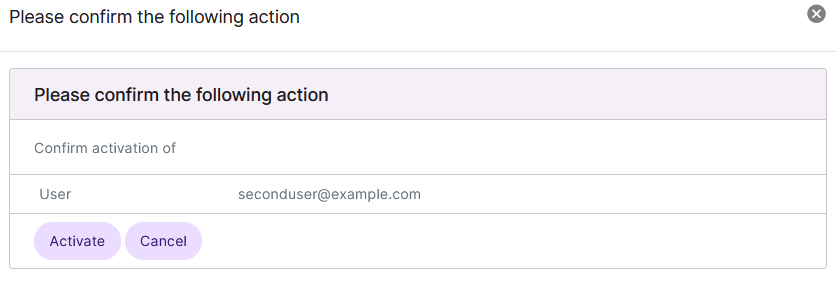
Click Activate
To Delete a Secondary User
Note
Only users marked as Secondary can be deleted.
From the Users List
Log into SiteWorx from the browser (https://ip.ad.dr.ess:2443/siteworx)
In SiteWorx, navigate to Administration > User Accounts, either from the side menu or SiteWorx home
Click the Trashcan next to the user. This open the Confirmation form

Click Delete
From the With Selected Dropdown
Log into SiteWorx from the browser (https://ip.ad.dr.ess:2443/siteworx)
In SiteWorx, navigate to Administration > User Accounts, either from the side menu or SiteWorx home
Select the checkbox next to the user(s)
Selecting the checkbox next to the With Selected dropdown will automatically select all users
Select Delete from the With Selected dropdown
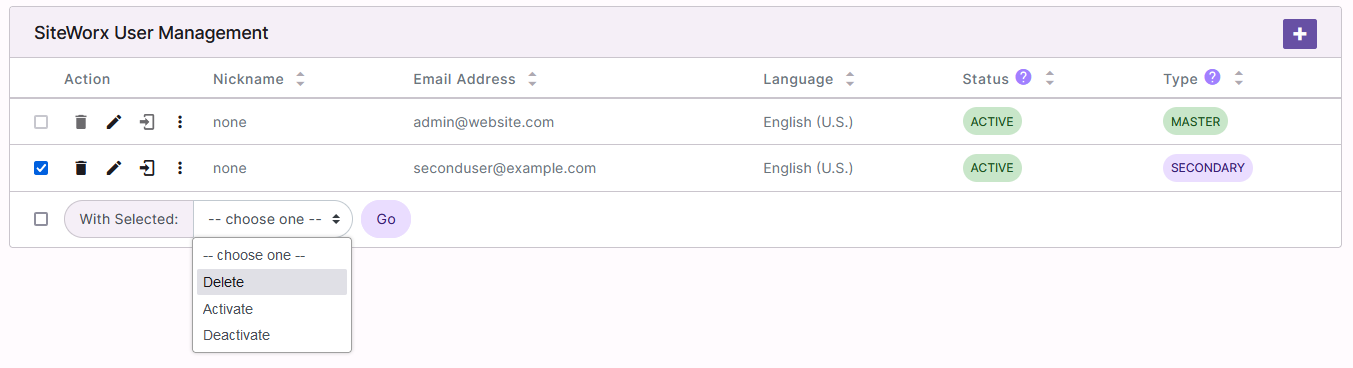
Click Go. This opens the Confirm Deletion form
Click Delete