How To: Create and Manage Mailing Lists
Note
Mailman is only available on EL7 and EL8 servers. It is no longer supported for InterWorx on EL9 servers.
Mailman is a software package that may be used to manage electronic mail discussions and e-newsletter lists.
From the SiteWorx control panel, users may create, manage, and delete mailing lists, as well as manage access and subscription services.
Enabling Access to Mailman for SiteWorx Accounts
In order for Mailman to be accessible within SiteWorx, it must first be enabled for the SiteWorx account via the SiteWorx Account Management settings form within NodeWorx. This can be performed either during account creation, or by editing the form after the fact.
Note
Enabling Mailman access for the SiteWorx account is a NodeWorx-level task, and therefore can only be performed by a system administrator.
SiteWorx users who do not see Mailman listed as an option in SiteWorx should contact their hosting provider to be granted access.
Log into NodeWorx from the browser (https://ip.ad.dr.ess:2443/nodeworx)
In NodeWorx, navigate to SiteWorx > Packages

Click the Pencil Icon next to the SiteWorx account
Under Package Options, select Yes from the Mailman Enabled dropdown
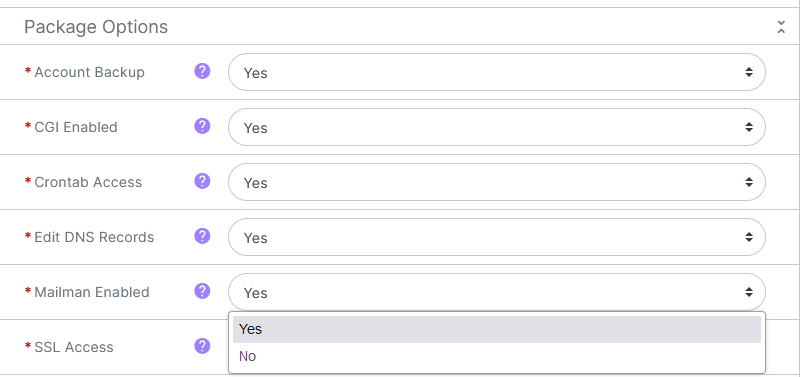
Click Save
Creating a Mailing List
Log into SiteWorx from the browser (https://ip.ad.dr.ess:2443/siteworx)
In SiteWorx, navigate to Hosting Features > Email > Mailing Lists

Click +. This opens the Add Mailing List form

Update the required fields:
List Name: The name of the new mailing list
Access Type: Privacy level of the mailing list
Public: Sets the list to be publicly advertised
List archives are publicly available
Subscribe policy requires email confirmation for new members
Private: Sets the list to not be publicly advertised
List archives are not publicly available
New members are subject to admin approval
Password: The password required to access the admin interface of the mailing list
Confirm Password
Click Add
Managing the Access Type
Log into SiteWorx from the browser (https://ip.ad.dr.ess:2443/siteworx)
In SiteWorx, navigate to Hosting Features > Email > Mailing Lists
Click the Access Type next to the list. This opens the Edit Mailing List Settings form
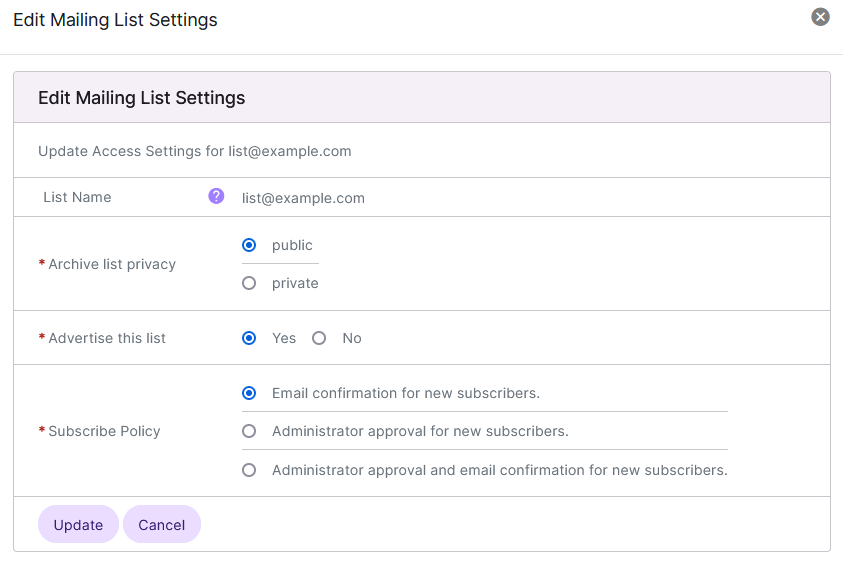
Update the required settings:
Archive List Privacy: Sets whether the archives are publicly available
Advertise this list: Sets if the list is reported when a lists request is sent to listname-requests@domain.tld
Subscribe Policy: Sets the rules to approve a new subscriber
Click Update
Managing Mailing List Settings
Note
Mailing list settings are managed via Mailman’s settings portal. Detailed information on managing Mailman mailing lists can be found here
Log into SiteWorx from the browser (https://ip.ad.dr.ess:2443/siteworx)
In SiteWorx, navigate to Hosting Features > Email > Mailing Lists
Click the Pencil icon. This opens the Mailinglist Administrator Authentication page in a new tab
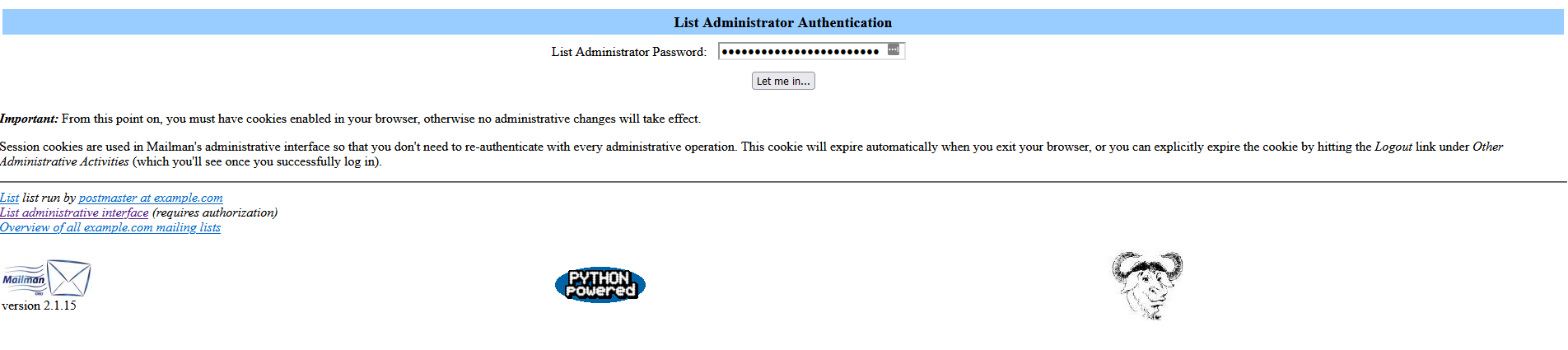
Update the List Administrator Password field
Click Let Me In. This logs the user into Mailman’s settings portal
Managing a Mailing List Password
Log into SiteWorx from the browser (https://ip.ad.dr.ess:2443/siteworx)
In SiteWorx, navigate to Hosting Features > Email > Mailing Lists
Click the Lock icon. This opens the Update List Password form
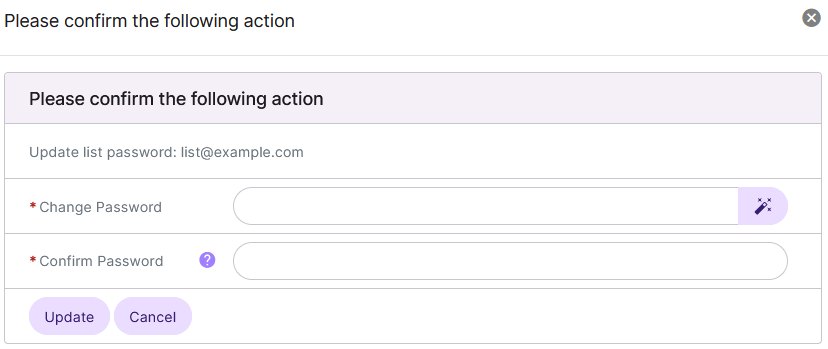
Update the Change Password and Confirm Password fields with the new desired password
Alternately, clicking the Magic Wand icon will automatically generate a new password
Click Update
Deleting a Mailing List
From the List of Mailing Lists
Log into SiteWorx from the browser (https://ip.ad.dr.ess:2443/siteworx)
In SiteWorx, navigate to Hosting Features > Email > Mailing Lists
Click the Trashcan. This opens the Confirm Deletion form
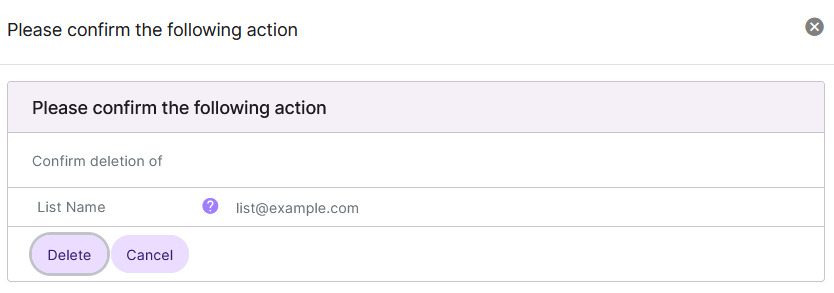
Click Delete
From the With Selected Dropdown
Log into SiteWorx from the browser (https://ip.ad.dr.ess:2443/siteworx)
In SiteWorx, navigate to Hosting Features > Email > Mailing Lists
Select the checkbox next to the list(s)
Selecting the checkbox next to the With Selected dropdown will automatically select all lists
Select Delete from the With Selected dropdown
Click Go. This opens the Confirm Deletion form
Click Delete