How To: Manage Secondary Domains
Secondary Domains are “full-fledged” domains, with their own vhosts. They are not attached to the master domain in any way except for feature limits that are shared between the master domain and secondary domains.
For instance, if a SiteWorx account has the ability to create 10 e-mail boxes, the master domain could have 5 e-mail boxes, and a secondary domain could also have 5 e-mail boxes, and that would be the limit for these accounts.
Secondary domains have their own statistics pages, bandwidth recording, and web space.
How to: Add a Secondary Domain
Log into SiteWorx from the browser (https://ip.ad.dr.ess:2443/siteworx)
In SiteWorx, navigate to Hosting Features > Domains > Manage, either from the side menu or SiteWorx home
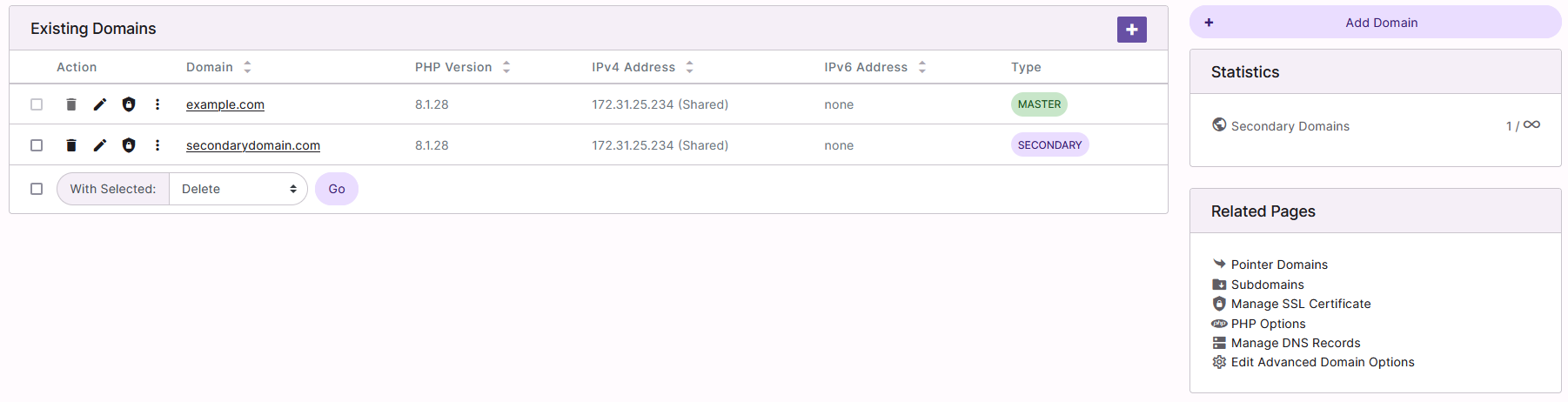
Click + or Add Domain. This opens the Add Domain form
Update the required fields:
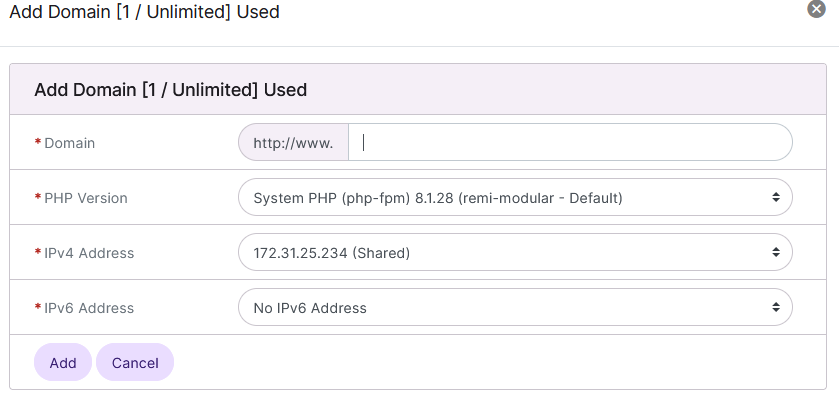
Domain: The secondary domain
PHP Version: The PHP version the domain will use
IPv4 Address: The IPv4 address of the domain
IPv6 Address: The IPv6 address of the domain (if applicable)
Click Add
To Edit a Secondary Domain
Log into SiteWorx from the browser (https://ip.ad.dr.ess:2443/siteworx)
In SiteWorx, navigate to Hosting Features > Domains > Manage, either from the side menu or SiteWorx home
Click the Pencil next to the secondary domain to edit. This opens the Edit Secondary Domain form
Update the desired fields
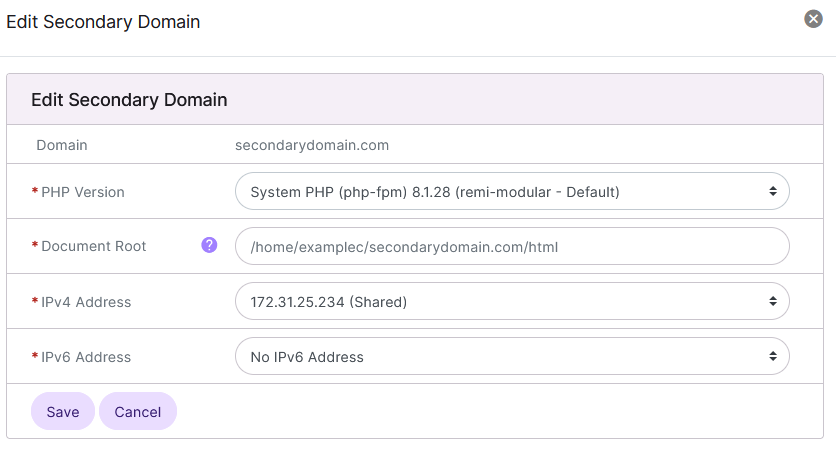
Click Save
To Delete a Secondary Domain
From the Domains List
Log into SiteWorx from the browser (https://ip.ad.dr.ess:2443/siteworx)
In SiteWorx, navigate to Hosting Features > Domains > Manage, either from the side menu or SiteWorx home
Click the Trashcan next to the secondary domain. This opens the Confirmation form
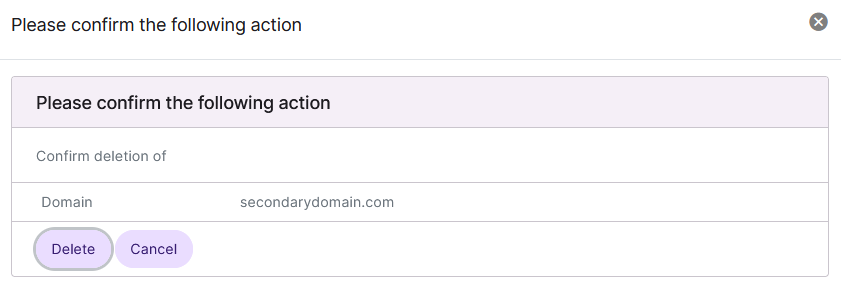
Click Delete
From the With Selected Dropdown
Log into SiteWorx from the browser (https://ip.ad.dr.ess:2443/siteworx)
In SiteWorx, navigate to Hosting Features > Domains > Manage, either from the side menu or SiteWorx home
Select the checkbox next to the domain(s)
Selecting the checkbox next to the With Selected dropdown will automatically select all domains
Select Delete from the With Selected dropdown
Click Go. This opens the Confirm Deletion form
Click Delete