How To: Manage Scheduled Tasks Via Cron in SiteWorx
The InterWorx Control Panel provides the SiteWorx administrator the ability to control their unix user’s crontab directly from the SiteWorx interface.
Note
SiteWorx users who do not see Cron Jobs listed as an option in SiteWorx should contact their hosting provider to be granted access.
To Update the Cron Variables
Log into SiteWorx from the browser (https://ip.ad.dr.ess:2443/siteworx)
In SiteWorx, navigate to Hosting Features > Cron Jobs, either from the side menu or SiteWorx home
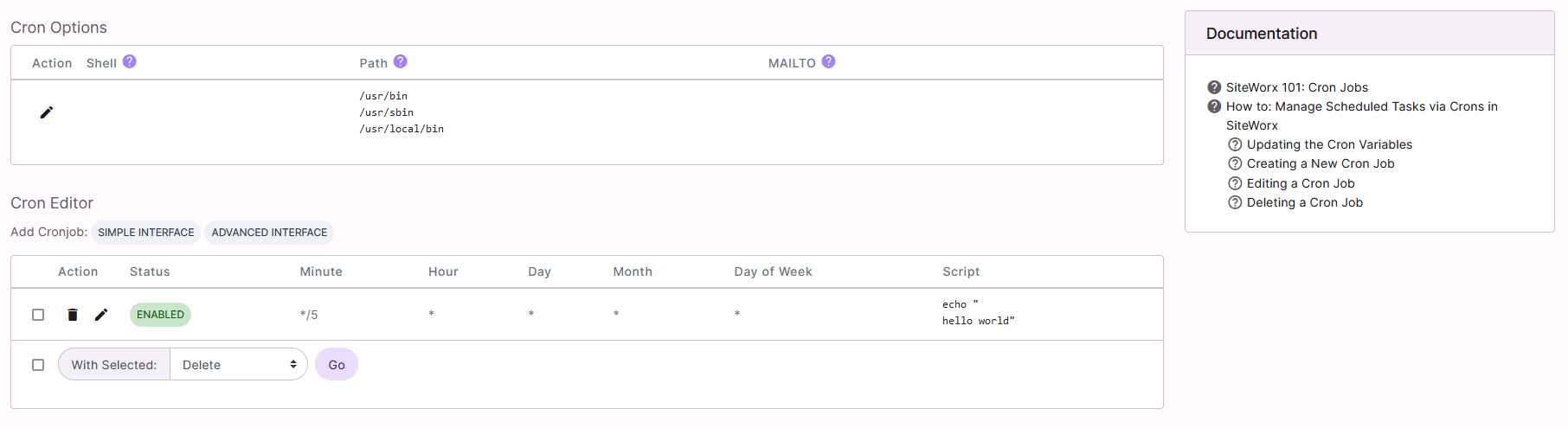
Under Cron Options, click the Pencil. This opens the Cron Options form
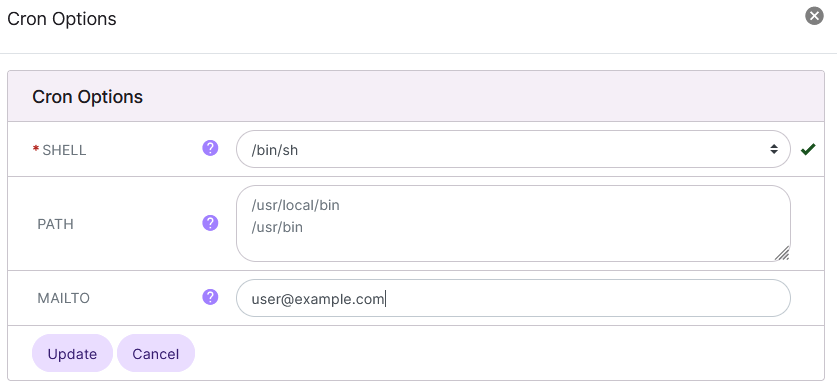
Update the desired fields:
Shell: All scripts will be executed with this shell
The default shell is
/bin/sh
Path: Sets the directories which will be used in the search path for the cron
Mailto: Output produced by a Cronjob will be emailed to this address
Click Update
To Set a New Cron Job
Log into SiteWorx from the browser (https://ip.ad.dr.ess:2443/siteworx)
In SiteWorx, navigate to Hosting Features > Cron Jobs, either from the side menu or SiteWorx home
Under Cron Editor, select either Simple Interface (the default) or Advanced Interface
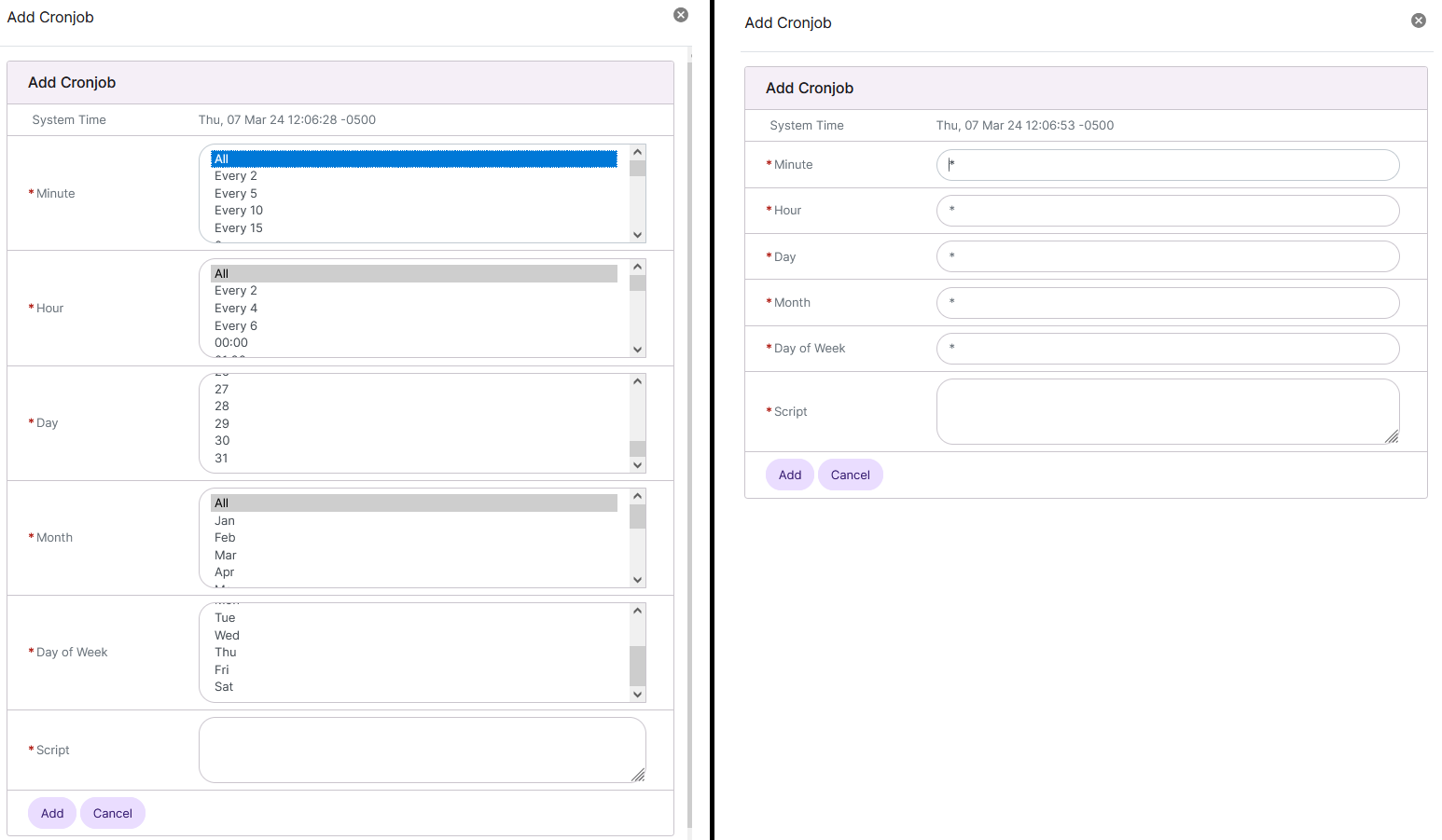
Each interface provides the same options, but different input methods:
Simple Interface: Provides a visual guide for each required field, using words and numbers
Advanced Interface: Allows the user to manually update the required fields, using numeric notation, similar to editing the crontab from the CLI
Update the required fields:
Minute: The minute the cron will run
Can be set as a specific minute (8 is the 8th minute of every hour), an interval (every 2, 5, 10, or 15th minute), a range (5-10 is minutes 5-10), or every minute (ALL in the Interface or * in the Advanced Interface)
Hour: The hour the cron will run
Can be set as a specific hour (10 is every day at 10AM or 22 is every day at 10PM), an interval (every 2, 4, or 6th hour), a range (5-10 is hours 5am through 10am), or every hour (ALL in the Simple Interface, or * in the Advanced Interface)
Day: The day of the month the cron will run
Can be set as a specific day of the week between 0 and 7 (Wed is every Wednesday in the Simple Interface, 3 is every Wednesday in the Advanced Interface), a range (1-3 is days Monday through Wednesday), an interval (*/2 is every 2 days of the week in the Advanced Interface) or every day of the week (ALL in the Simple Interface, or * in the Advanced Interface)
Day of the Week: The day of the week the cron will run
Can be set as a specific day of the week between 0 and 7 (Wed is every Wednesday in the Simple Interface, 3 is every Wednesday in the Advanced Interface), a range (1-3 is days Monday through Wednesday), an interval (*/2 is every 2 days of the week in the Advanced Interface) or every day of the week (ALL in the Simple Interface, or * in the Advanced Interface)
Both 0 and 7 may be used to represent Sunday
Script: The script that will run as part of the cron
Click Add
To Edit a Cron Job
Log into SiteWorx from the browser (https://ip.ad.dr.ess:2443/siteworx)
In SiteWorx, navigate to Hosting Features > Cron Jobs, either from the side menu or SiteWorx home
Under Cron Options, click the Pencil next to the Cronjob to edit. This opens the Edit Cron Job form. This contains same options as the New Cron Job form
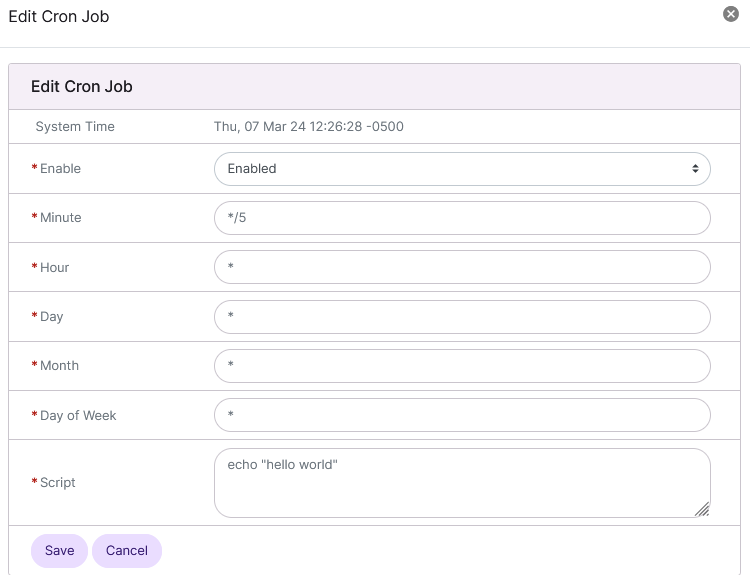
Update the desired fields
Click Save
To Delete a Cron Job
From the Cron List
Log into SiteWorx from the browser (https://ip.ad.dr.ess:2443/siteworx)
In SiteWorx, navigate to Hosting Features > Cron Jobs, either from the side menu or SiteWorx home
Under Cron Options, click the Trashcan next to the cronjob. This opens the Confirmation form
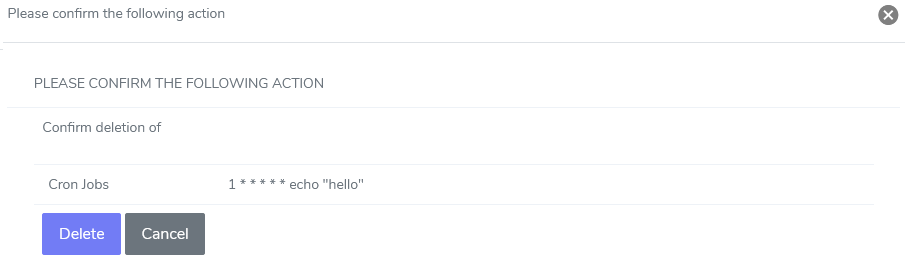
Click Delete
From the With Selected Dropdown
Log into SiteWorx from the browser (https://ip.ad.dr.ess:2443/siteworx)
In SiteWorx, navigate to Hosting Features > Cron Jobs, either from the side menu or SiteWorx home
Select the checkboxes next to the cronjob(s).
Selecting the checkbox next to the With Selected dropdown will automatically select all cronjobs
Click Go. This opens the Confirmation form
Click Delete