How To: Set Individual/Per-Domain ini Configurations for Custom PHP Options
Custom configurations for PHP settings can be added to domains by creating custom ini files. The type of file and process differs, depending on if the server’s PHP mode is SuPHP or PHP-FPM.
The server’s PHP mode can be found on the Webserver page in NodeWorx. PHP-FPM is the default for all new installations of InterWorx. PHP-FPM is also the PHP mode for all PHP versions provided by the multiple PHP tool. SiteWorx users will need to contact their hosting providers for this information.
To Create a Custom ini file for SuPHP
Custom ini files for SuPHP are named php.ini, and must be located at /home/{unixuser}/etc/php.ini. A .htaccess edit
is also required.
Note
It is not possible to create a custom php.ini file from within the SiteWorx interface. It must be created via the CLI.
As it requires copying information from /etc/php.ini, this file must also be created by the server
administrator, as SiteWorx users do not have access to that file. SiteWorx users should contact their hosting provider.
Log in to the server at the CLI as root, either via SSH or from the terminal
From the CLI, create a directory named
/home/{unixuser}/etc, replacing{unixuser}with the user associated with the SiteWorx accountmkdir /home/unixuser/etc
Copy the default
php.inifile (usually found in/etc/) to a new file named/home/{unixuser}/etc/php.inicp /etc/php.ini /home/unixuser/etc/php.ini
Make sure the new directory and file are both owned by the unixuser
chown unixuser:unixuser /home/unixuser/etc
chown unixuser:unixuser /home/unixuser/etc/php.ini
Using a text editor, open the new php.ini file. The following example uses the Vim text editor
vim /home/unixuser/etc/php.ini
Add the desired custom PHP settings
Save the file and exit the text editor
Using a text editor, either create a new
.htaccessfile under/home/unixuser/public_html, or open an existing.htaccessfile for editing. The following example uses the Vim text editorvim /home/unixuser/public_html/.htaccess
Add the following entry, replacing
{unixuser}with the user associated with the SiteWorx accountsuPHP_ConfigPath /home/{unixuser}/etc/ <Files etc/php.ini> order allow,deny deny from all </Files>
Save the file and exit the text editor
To Create the Custom ini File For PHP-FPM
Custom ini files for PHP-FPM users (which includes PHP versions included in the Multiple PHP Tool) are named .user.ini
and must be located at /home/{unixuser}/domain.com/html/.user.ini or /home/{unixuser}/public_html/.user.ini.
Changes to php-fpm settings are a bit limited, in comparison to custom options for SuPHP. More information is available here.
Using the CLI
Log in to the server at the CLI as root, either via SSH or from the terminal
From the CLI, navigate to
/home/{unixuser}/{domain.com}/html(or/home/{unixuser}/public_html), replacing{unixuser}and{domain.com}with the user and domain associated with the SiteWorx accountUsing a text editor, create a file named
.user.ini. the following example uses the Vim text editorNote
The file must be literally named
.user.ini, not to be confused with the unixuser name.vim /home/unixuser/domain/com/html/.user.ini
Add the desired custom PHP settings information
Save the file and exit the text editor
Make sure that the file is owned by the unixuser
chown unixuser:unixuser /home/unixuser/domain.com/html/.user.ini
Using the SiteWorx File Manager
Log into SiteWorx in the browser (https://ip.ad.dr.ess:2443/siteworx)
In SiteWorx, navigate to File Manager, either from the side menu or SiteWorx home
Choose the domain to log into File Manager from the Domain dropdown

Click Login. This opens the File Manager for that domain. The root of the file manager is the domain’s home directory located at
/home/{unixuser}/{domain.com}, replacing{unixuser}and{domain.com}with the corresponding information
Click html. This opens the html directory for the domain
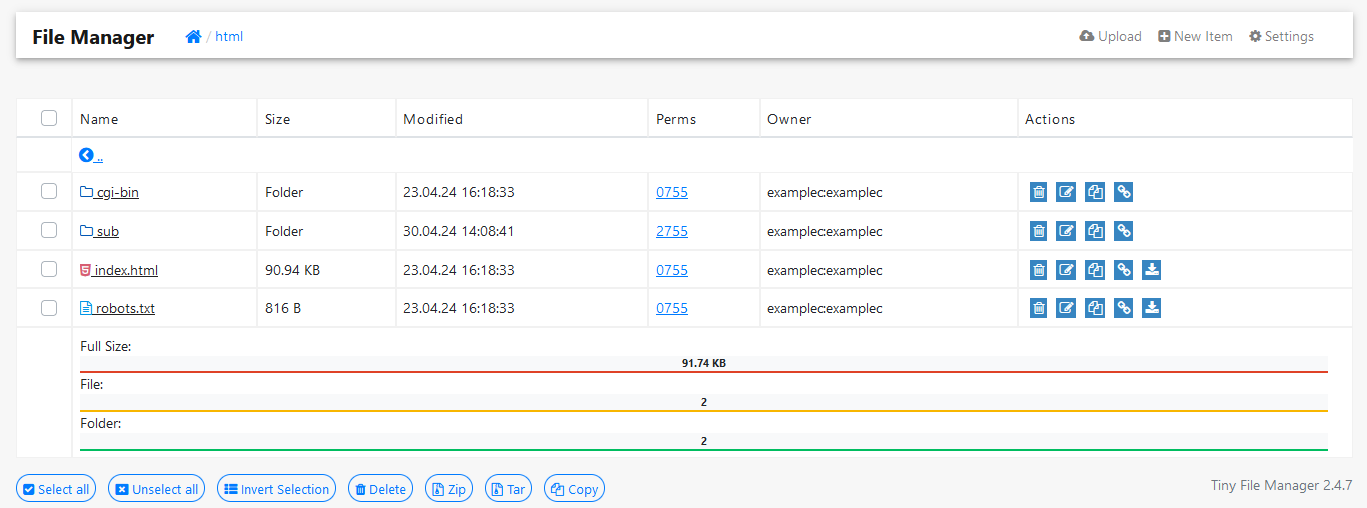
Click New Item. This opens the Create New Item form
Update the required fields:
Item Type: Select File
Item Name: Type .user.ini
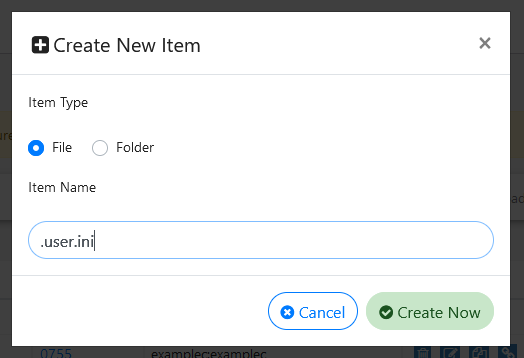
Click Create Now. This creates the file and refreshes the html directory page

Click .user.ini. This opens the options page for the .user.ini file
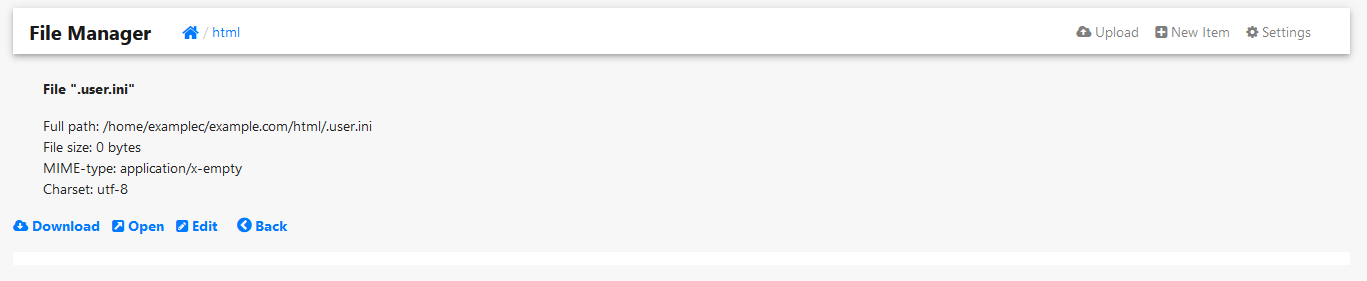
Click Edit. This opens the edit form for the file

Add the desired custom PHP settings information
Click Save