How To: Manage PHP Versions in NodeWorx
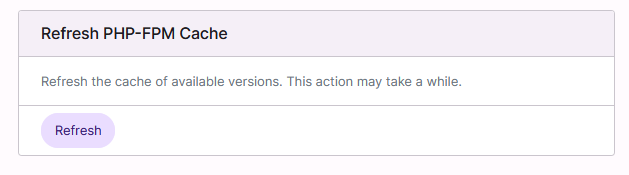
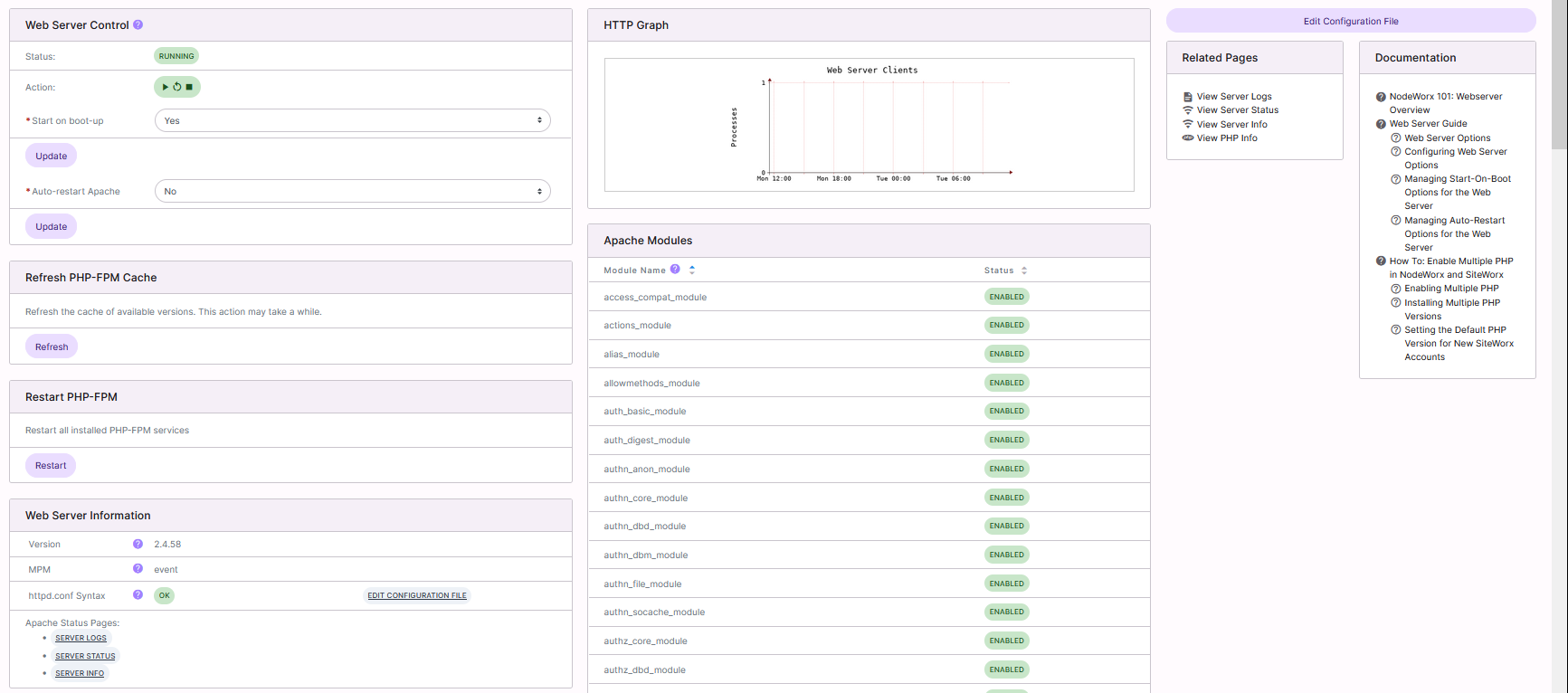
From the Webserver page in NodeWorx, Server Administrators have the ability to manage the PHP Mode for the system PHP version, install alternate PHP versions using the Multiple PHP tool, restart PHP-FPM and refresh the PHP-FPM cache.
Other PHP related tasks, such as upgrading the system PHP version and managing PHP config and ini files files must be completed via the CLI.
Information on allowing SiteWorx accounts access to specific PHP versions can be found here.
Documentation on how to set PHP versions for specific domains in SiteWorx can be found here.
To Change the PHP Mode for the System PHP Version
Note
The versions of PHP provided by the Multiple PHP tool within InterWorx use PHP-FPM by default, whether the system-level PHP mode is set to SuPHP or PHP-FPM.
Log into NodeWorx from the browser (https://ip.ad.dr.ess:2443/nodeworx)
From NodeWorx, navigate to System Services > Web Server > Overview
Under PHP Integration Mode, select the desired PHP Mode from the PHP Mode dropdown. There are two options:
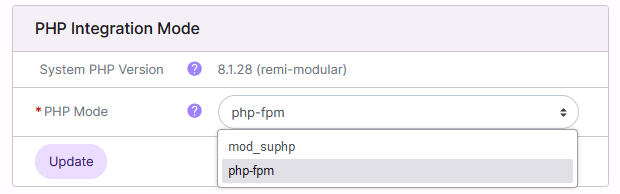
mod_suPHP: Apache module that runs PHP scripts as the script owner, using the script owner’s permissions
If a user’s script is compromised, it will not affect other users
Can prevent users from running unauthorized PHP scripts, as they will not have the proper permissions to do so
PHP-FPM: Process manager that runs PHP scripts as a separate process outside of the web server, and communicates with the web server using FastCGI
Better able to handle large numbers of concurrent requests
Generally better performance and scalability vs suPHP
Better resource management than suPHP
Click Update
To Install Multiple PHP Versions
Note
Depending on the number of PHP versions that are being installed, and the speed of the internet connection on the server, it is not uncommon for this process to take several minutes.
Log into NodeWorx from the browser (https://ip.ad.dr.ess:2443/nodeworx)
From NodeWorx, navigate to System Services > Web Server > Overview
Under Multiple PHP Versions, select the checkbox next to the PHP versions
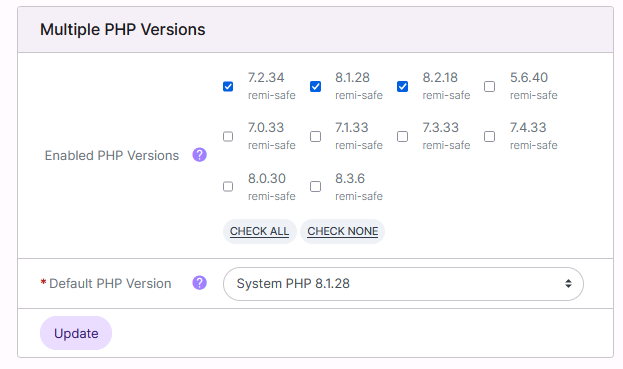
Click Update
To Restart PHP-FPM
Log into NodeWorx from the browser (https://ip.ad.dr.ess:2443/nodeworx)
From NodeWorx, navigate to System Services > Web Server > Overview
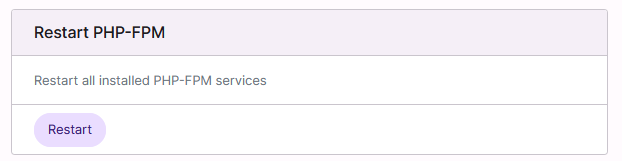
Under Restart PHP-FPM, click Restart
To Refresh PHP-FPM Cache
Log into NodeWorx from the browser (https://ip.ad.dr.ess:2443/nodeworx)
From NodeWorx, navigate to System Services > Web Server > Overview
Under Restart PHP-FPM, click Restart