How To: Manage the Let’s Encrypt and AutoSSL Plugin
Let’s Encrypt is a free, automated, and open, certificate authority (CA), run for the public’s benefit. It is a service provided by the Internet Security Research Group (ISRG). Let’s Encrypt integrates with InterWorx via a plugin, which allows users to generate free, secure, SSL certificates.
The Let’s Encrypt plugin for InterWorx also has the ability to attempt to automatically generate Let’s Encrypt SSL certificates for domains that resolve to the server. AutoSSL will create SSL certificates for the following:
Domains that resolve to the server and are currently using self-signed certificates
Domains that resolve to the server, but do not have an associated SSL certificate
Let’s Encrypt certificates that were imported from another control panel. For example, cPanel AutoSSL certificates
This plugin is enabled by default on InterWorx 8 servers.
Note
In order for AutoSSL to create an SSL certificate for the domains associated with an SiteWorx account, the SSL option must be enabled for the account in the SiteWorx account settings form
To Manage the Let’s Encrypt Plugin and AutoSSL
Log into NodeWorx from the browser (https://ip.ad.dr.ess:2443/nodeworx)
In NodeWorx, navigate to NodeWorx > Plugins
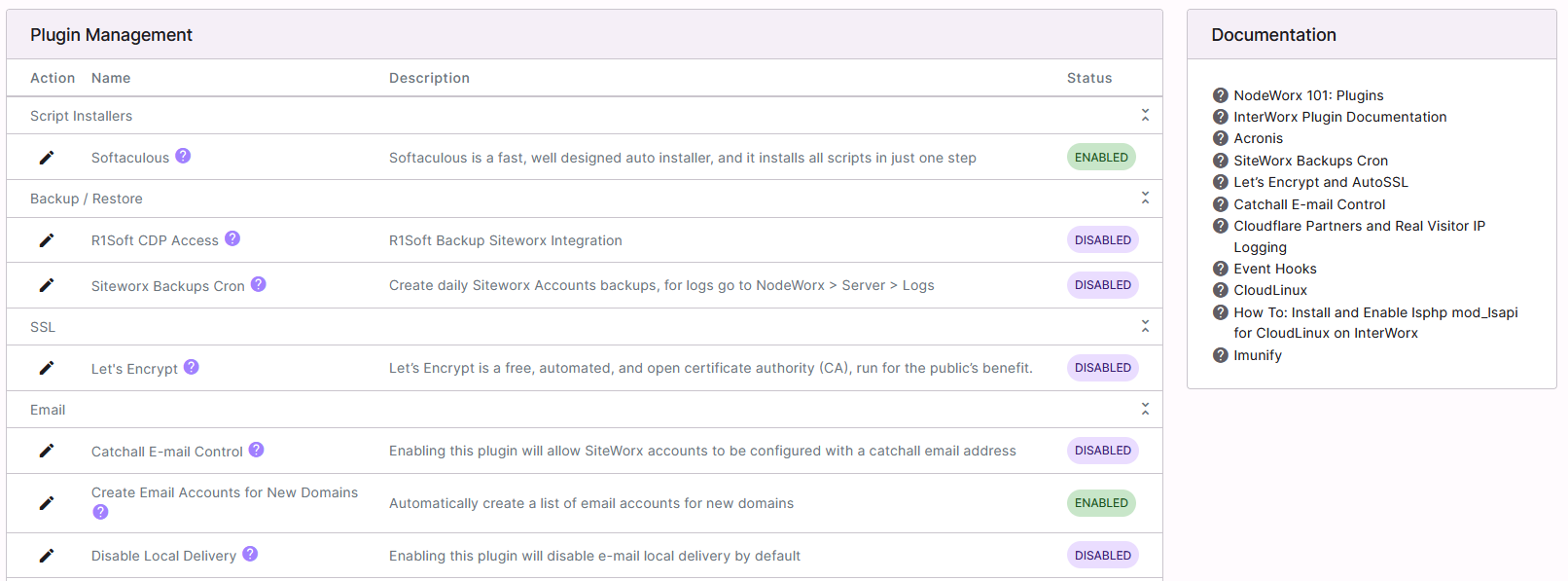
Under SSL, click the Pencil next to Let’s Encrypt. This opens the Edit Plugin form

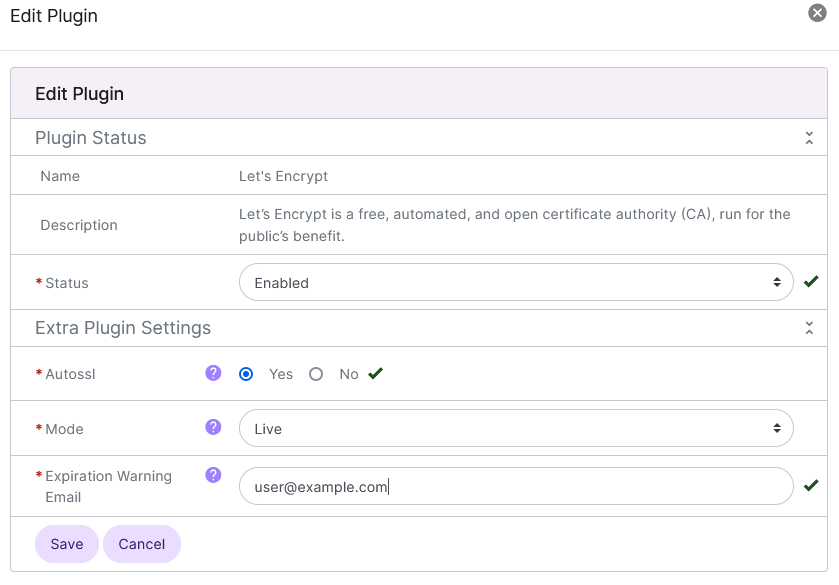
Update the required settings:
Status: Enables or disables the plugin
AutoSSL: Enables or disables AutoSSL
Mode: The mode that AutoSSL certificates will use to initially create the SSL certificat
Let’s Encrypt only allows a certain amount of certificate generation attempts per server, per week. This includes failed attempts. Once that cap is hit, Let’s Encrypt does not allow any more attempts until that counter resets. To better manage the potential for rate limiting, there are two potential modes that can be used to generate a certificate. More information on Let’s Encrypt rate limiting can be found here.
Live: Generates a real LetsEncrypt signed certificate
Staging: Generates a fake certificate that should only be used for testing purposes. It is always recommended to attempt to generate a certificate in Staging mode, first, to test for any potential errors that may appear. If the staged test certificate generates successfully, it should then be safe to generate one in Live mode
Email Address: The email address where expiration warning messages will be sent
Click Save
To Create AutoSSL Certificates On Demand
When AutoSSL is enabled, each time the InterWorx daily cron runs, it will:
Check to see which domains on the server do not have an associated SSL Certificate
Check to which of those domains are live and resolve to the server
Generate an SSL certificate using Let’s Encrypt for the domains that fit the above criteria
This task can also be run manually from the CLI if waiting until the next daily cron runs is undesirable.
Log in to the server at the CLI as root, either via SSH or from the terminal
At the CLI, run the AutoSSL script
~iworx/cron/iworx.pex --run-one=Autossl
To Exclude a Domain from AutoSSL
Log into NodeWorx from the browser (https://ip.ad.dr.ess:2443/nodeworx)
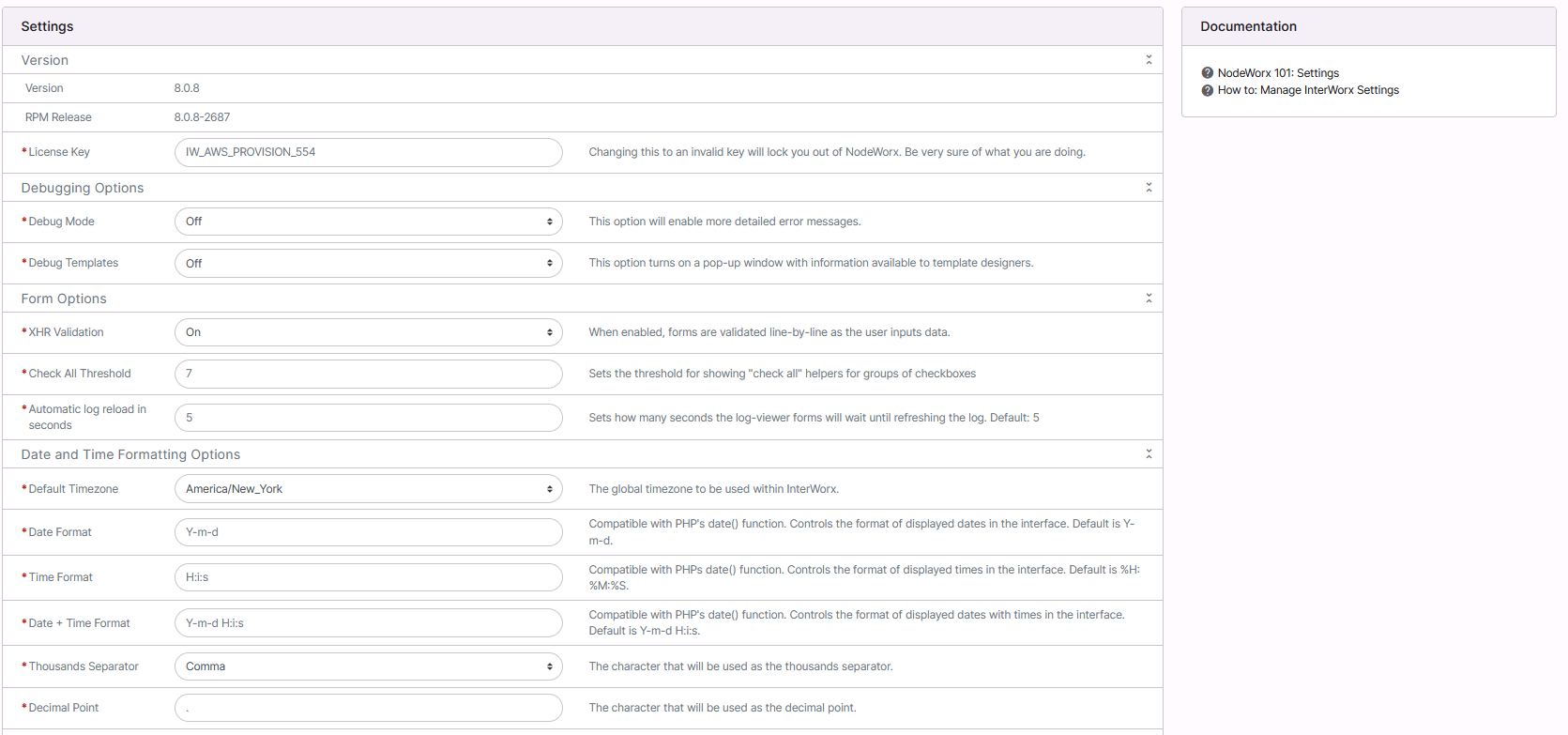
From NodeWorx, navigate to Server > Settings
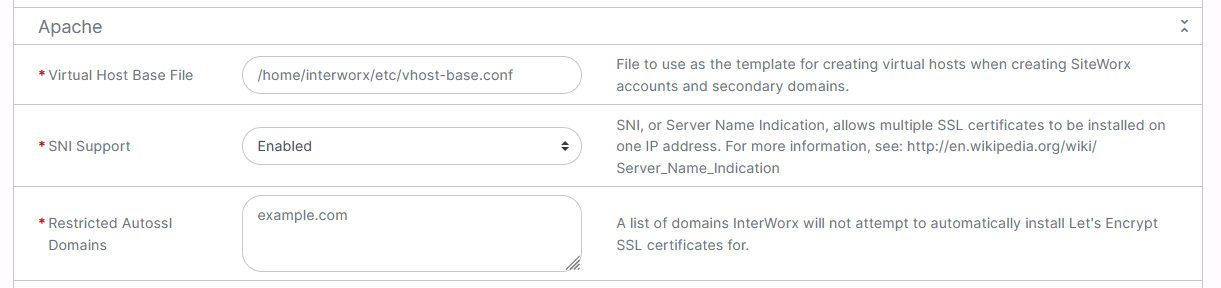
Under the Apache section, update the Restricted AutoSSL Domains field with any domains that should be excluded from AutoSSL
At the bottom of the page, click Save