How To: Create and Manage Secondary NodeWorx Users
A NodeWorx user can login and access specified parts of the NodeWorx server management interface.
To Add a NodeWorx User
Log into NodeWorx from the browser (https://ip.ad.dr.ess:2443/nodeworx)
Navigate to NodeWorx > User Accounts
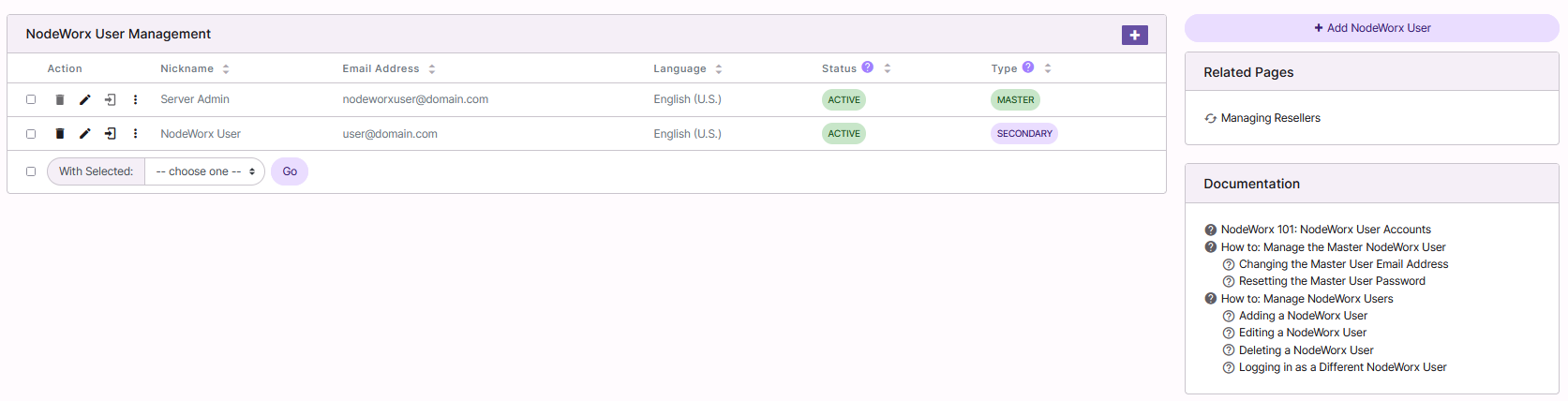
Click + or Add NodeWorx User. This opens the Add NodeWorx User form
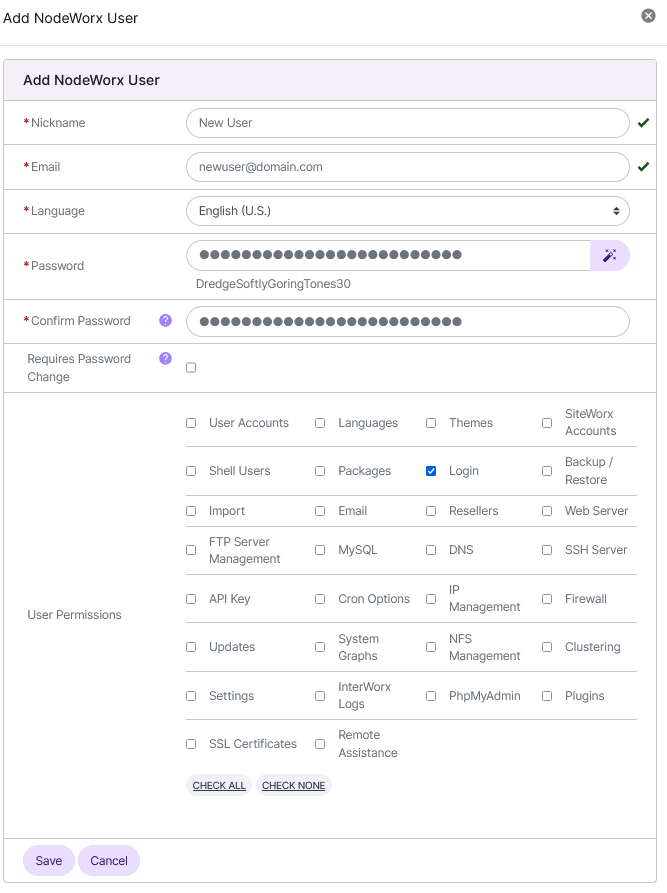
Update the required felds:
Name: The name of the NodeWorx user
Email Address: The email address of the NodeWorx user. This serves as the user’s NodeWorx login and must not belong to any other NodeWorx user, including resellers
Language: The default language for the NodeWorx user
Password: The desired password
To automatically generate a password, click the Magic Wand
Confirm Password: The desired password
If desired, select the checkbox next to Requires Password Change. This will require the user to change their password the first time they log in
Select the checkbox next to each User Permission the user should be assigned
If the user should have full permissions, select Check All
Click Save
To Edit a NodeWorx User
Log into NodeWorx from the browser (https://ip.ad.dr.ess:2443/nodeworx)
Navigate to NodeWorx > User Accounts
Click the Pencil next to the user. This opens the Edit NodeWorx User form
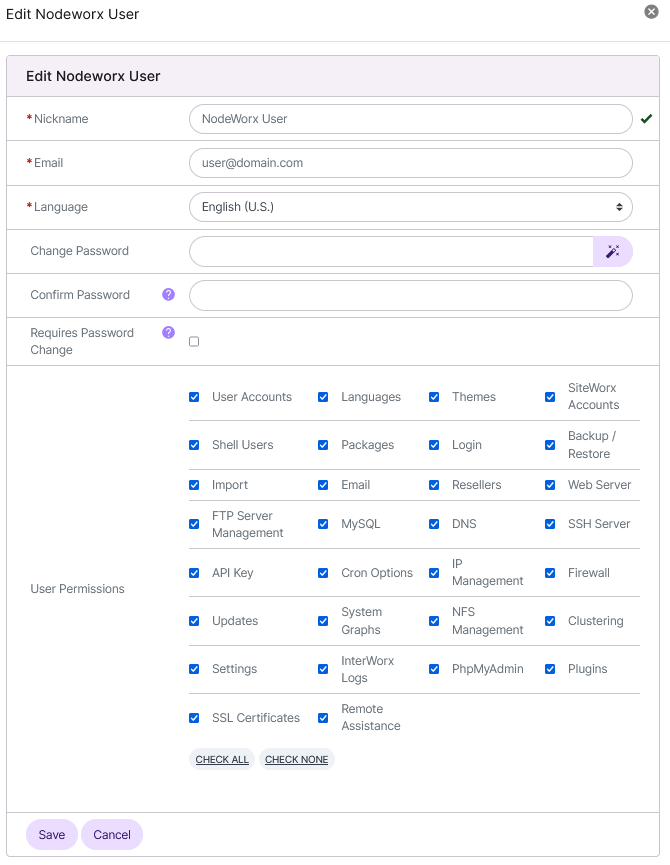
Update the desired fields
Click Save.
To Delete a NodeWorx User
Note
Only users marked as Secondary can be deleted.
From the Accounts List
Log into NodeWorx from the browser (https://ip.ad.dr.ess:2443/nodeworx)
Navigate to NodeWorx > User Accounts
Click the Trashcan next to the user to be deleted. This opens the Confirmation form
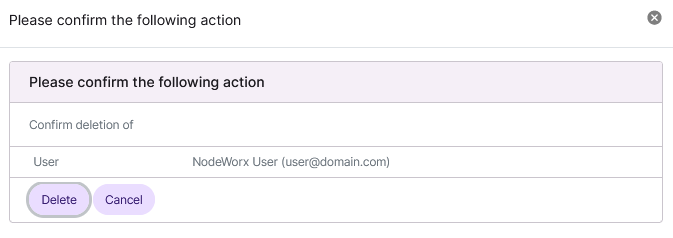
Click Delete
From the With Selected Dropdown
Log into NodeWorx from the browser (https://ip.ad.dr.ess:2443/nodeworx)
Navigate to NodeWorx > User Accounts
Select the checkbox next to the account(s)
Selecting the checkbox next to the With Selected dropdown will automatically select all accounts
Select Delete from the With Selected dropdown
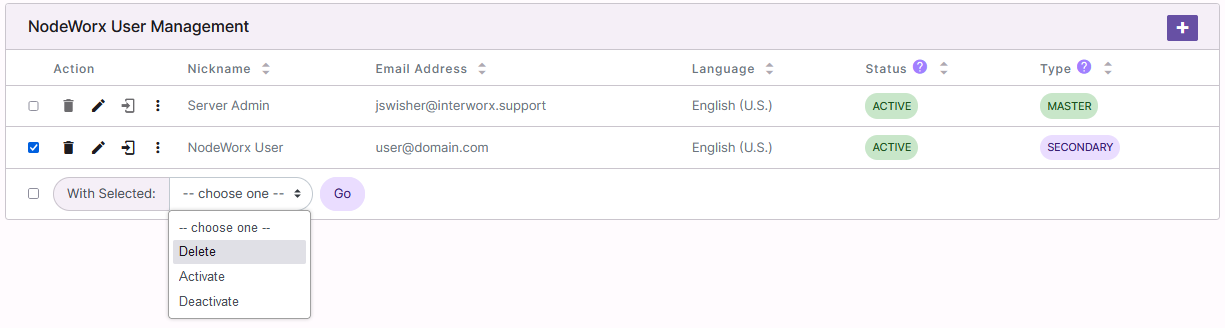
Click Go. This opens the Confirm Deletion form
Click Delete
To Log In as a Different NodeWorx User
Note
When logged in as another user, only the privileges assigned to that user will be available.
Log into NodeWorx from the browser (https://ip.ad.dr.ess:2443/nodeworx)
Navigate to NodeWorx > User Accounts
Click the Door next to the user. This automatically loads the NodeWorx Home page, logged in as that user
To return to the previous user login, click on the Username in the top right corner header of the page
Click Logout
To Deactivate a NodeWorx User
Log into NodeWorx from the browser (https://ip.ad.dr.ess:2443/nodeworx)
Navigate to NodeWorx > User Accounts
Click the vertical dots icon next to the Nodeworx account. This opens a selection menu

Select Deactivate. This opens the confirmation form
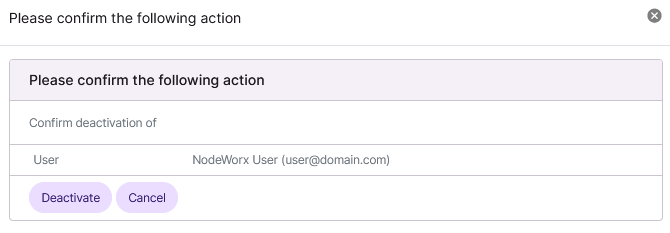
Click Deactivate
To Activate a Deactivated NodeWorx User
Log into NodeWorx from the browser (https://ip.ad.dr.ess:2443/nodeworx)
Navigate to NodeWorx > User Accounts

Click the vertical dots icon next to the Nodeworx account. This opens a selection menu

Select Activate. This opens the confirmation form
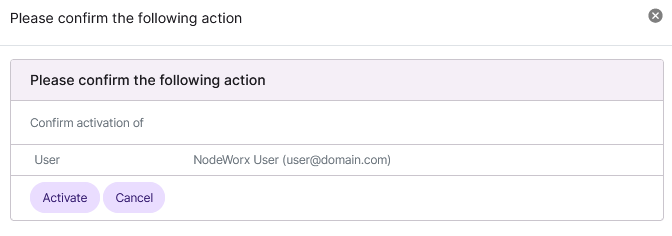
Click Activate