Note
You are viewing the documentation for an older release of Interworx (7.14). To see documentation for the current generally available release of Interworx, click here: 8.2.
Upgrading from InterWorx 7.x to InterWorx 8.x
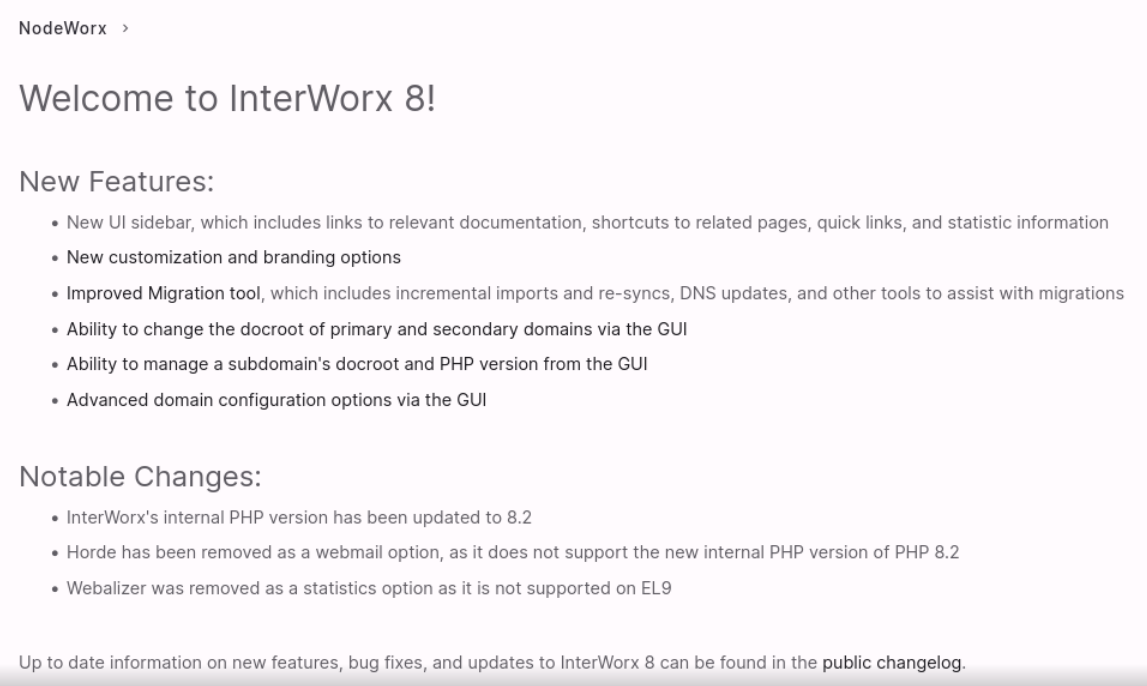
InterWorx 8 includes the following new features:
Refreshed GUI
New UI sidebar that includes detailed information and documentation links for forms and tasks
Support for AlmaLinux 9, Rocky Linux 9, and RHEL 9
Improved Migration tool, which includes incremental imports and re-syncs, DNS updates, and other tools to assist with migrations
Ability to change the docroot of primary or secondary domains via the GUI
Ability to manage a Subdomain’s docroot and PHP version from the GUI
Other Notable Changes:
Horde is no longer a webmail option, as it does not support the new internal PHP version of PHP 8.2
Let’s Encrypt and AutoSSL are enabled automatically
Multiple PHP is now enabled automatically
Webalizer was removed as a statistics option, as it does not support EL9
Old file manager was removed, as it is not supported on EL8 or EL9
Important Considerations
Warning
Please make note of the following important considerations before proceeding with the upgrade from InterWorx 7 to InterWorx 8, as the upgrade cannot be reverted
The InterWorx 7 to InterWorx 8 upgrade tool is not supported on InterWorx Clusters
The InterWorx 7 to InterWorx 8 upgrade tool is not supported on servers using LiteSpeed
The InterWorx 7 to InterWorx 8 upgrade tool is not supported on EL7 servers
During the upgrade, both NodeWorx and SiteWorx will be in maintenance mode. While user domains and email services will still be active, neither the NodeWorx, nor the SiteWorx interface will be accessible
All core services (Apache, MySQL, DNS, etc) will be restarted during the update
Detailed upgrade logs are located at
~iworx/var/log/upgrade.log
How to Upgrade
Log into NodeWorx from the browser (https://ip.ad.dr.ess:2443/nodeworx)
Navigate to Server > Software Updates
At the bottom of the page, under Major Version Upgrade, click Go to upgrade page. This opens the Pre-Flight Check page

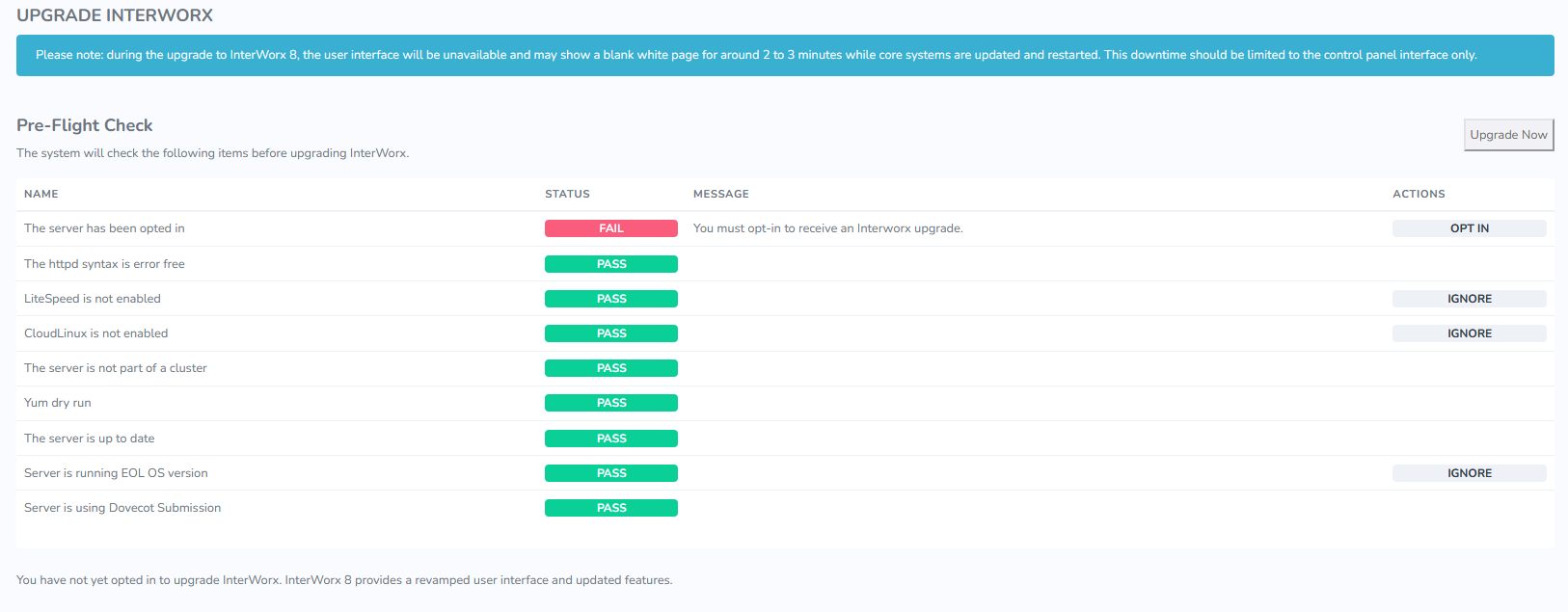
Click Opt In. This opens the Opt In to Upgrade InterWorx form
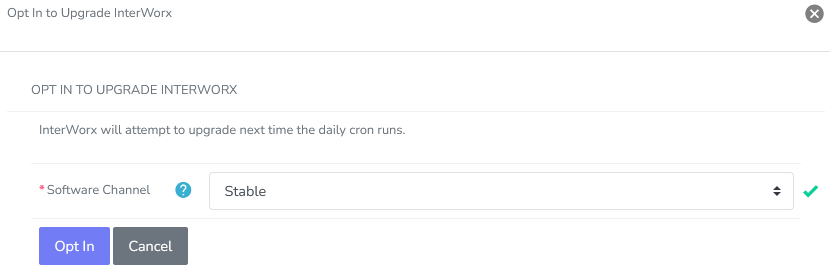
Select the Software Channel from the Software Channel dropdown. This determines which version of InterWorx 8 the server will update to
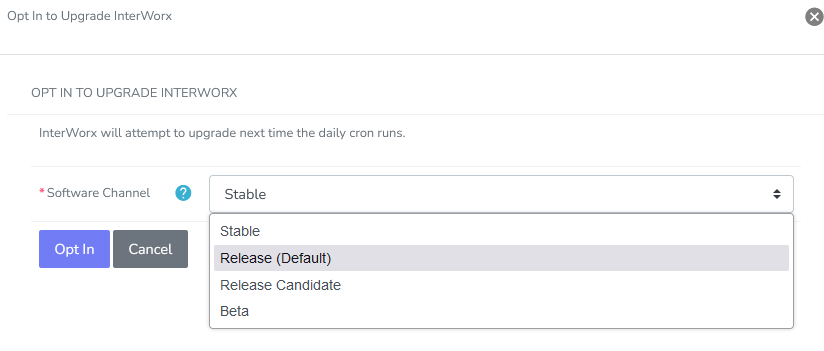
Click Opt In
Make sure that there are no Failures listed in the Pre-Flight Check. If any error is detected in the Pre-Flight Check, the upgrade will not complete
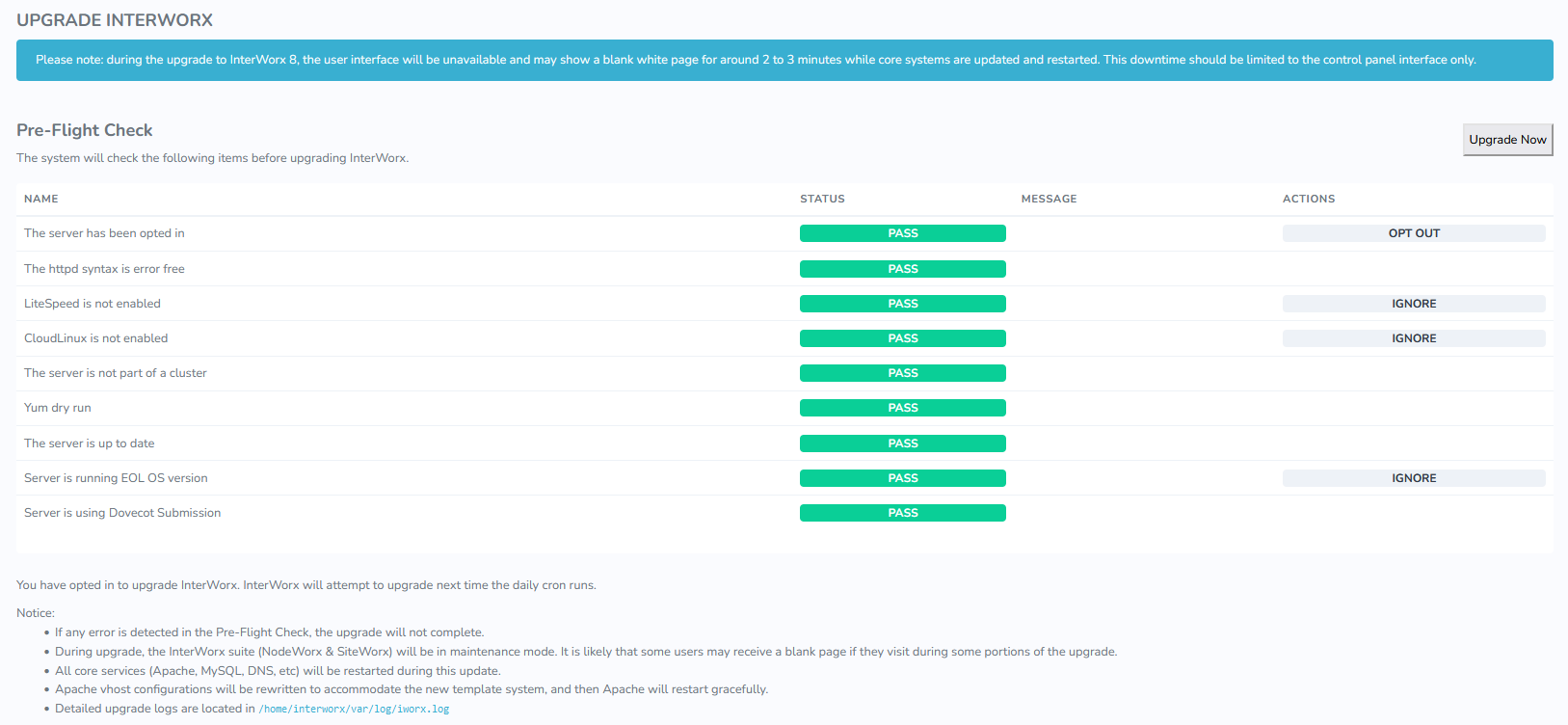
If there are no failures listed, click Upgrade Now. This opens the Start Upgrade confirmation form
If the Upgrade Now button is grayed out, resolve or ignore the identified problems in the Pre-Flight Check table
Warning
Ignoring any identified problems on the Pre-Flight Check may cause serious issues while using InterWorx 8, and is not recommended.
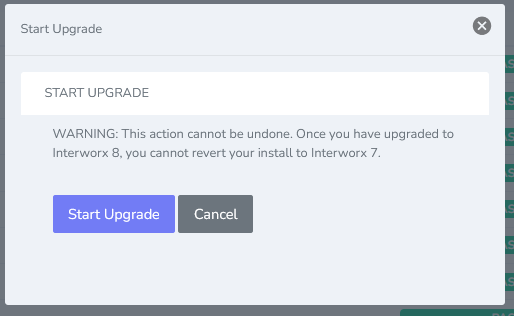
Click Start Upgrade. This opens the Upgrade in Progress page
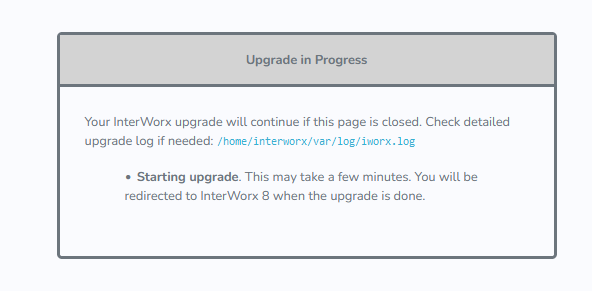
The upgrade from InterWorx 7 to InterWorx 8 will take several minutes. Progress may be monitored by referencing the logging at
~iworx/var/log/iworx.log.When the upgrade is complete, the page will redirect to the InterWorx 8 Welcome page.
Troubleshooting
In order to best facilitate the upgrade to InterWorx 8, the items listed on the pre-flight checklist are addressed before the update to InterWorx 8 occurs. If any of the items on this checklist fail, the update will not happen.
Ignoring any identified problems on the Pre-Flight Check may cause serious issues while using InterWorx 8.
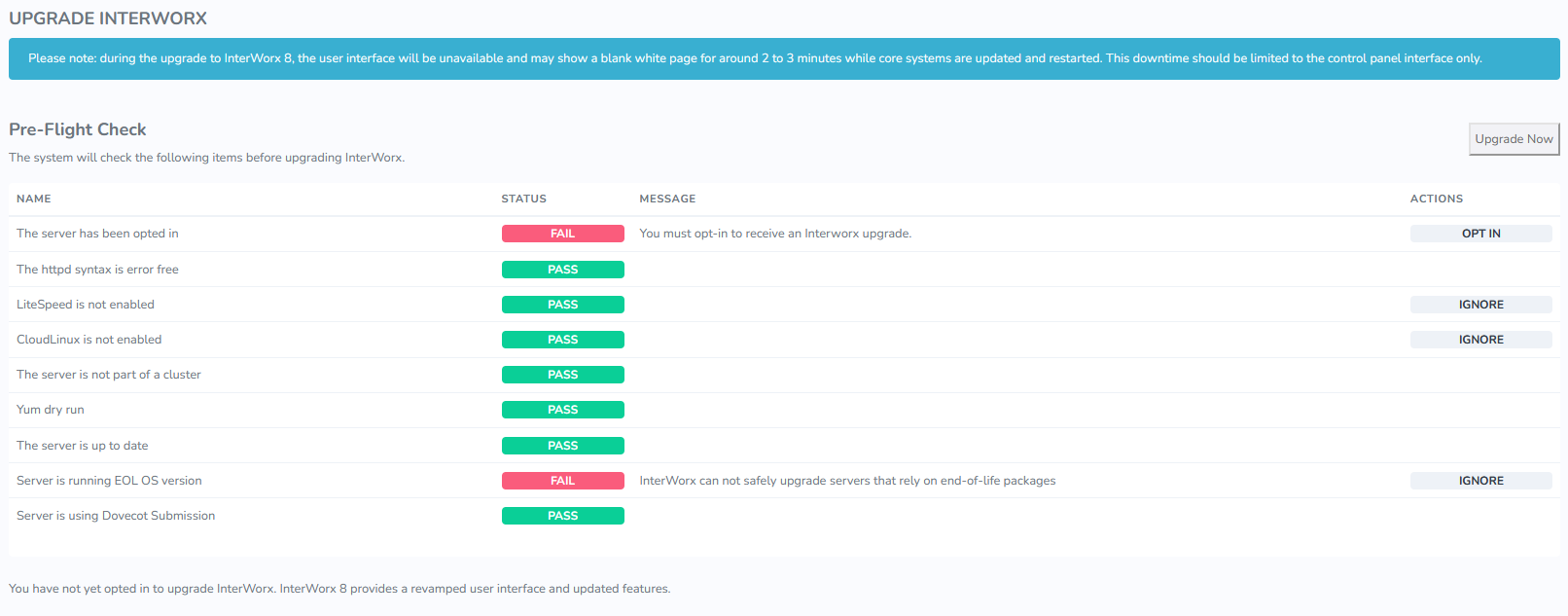
These items are:
The httpd syntax is error free: If there are any syntax errors in Apache conf or vhost files, this will fail
LiteSpeed is not enabled: This update cannot occur on Litespeed servers. Litespeed will either need to be disabled, or accounts will need to be migrated to a new server with InterWorx 8 installed
CloudLinux is not enabled: This update cannot occur on servers running CloudLinux. Those accounts must be imported to a new server with InterWorx 8 installed
The server is not part of a cluster: This update cannot occur on clustered servers. Clustering either has to be disabled/removed or accounts will need to be migrated to new servers with InterWorx 8 installed
Yum dry run: This checks to make sure that yum is up and running
The server is up to date: This makes sure that the server is up to date
Server is running EOL OS version: This checks to make sure that the server is on a supported OS. The update to InterWorx 8 will not work on EL7 servers. If this fails, accounts must be migrated to a new server with InterWorx 8 installed. Supported OSes can be found here
Server is using Dovecot Submission: Servers using courier for port 587 cannot be updated to InterWorx 8. The Dovecot MSA must be in use
There are two ways to check if courier is in use:
Via the GUI: If, under System Services > Mail Server > MDA Settings or MSA Settings, there is a button that says Convert to Dovecot, that service is not using Dovecot.
Note
If the MDA page has this button, the MSA link will not be shown. The existence of the MSA requires Dovecot handle the MDA services.
Via the CLI: Run the following commands:
cat ~iworx/etc/env/mda
cat ~iworx/etc/env/msa
Both of those files should say “dovecot”. If either of them say “legacy”, Dovecot is not handling that service. Example of the correct settings:
[root@server env]# cat ~iworx/etc/env/mda
dovecot
[root@server env]# cat ~iworx/etc/env/msa
dovecot
[root@server env]
To convert to Dovecot:
Via the GUI: Click the Convert to Dovecot button on each page that it appears
Via the CLI:
Run the following to convert the MDA, if needed:
nodeworx -u -n -c MailMda -a convertToDovecot
Run the following to convert the MSA:
nodeworx -u -n -c MailMsa -a convertToSubmission