Note
You are viewing the documentation for an older release of Interworx (7.14). To see documentation for the current generally available release of Interworx, click here: 8.2.
Clustering
Note
Clustering is only available for servers using Dedicated licenses. This menu section will not appear on servers using a VPS licenses.
Note
Interworx Clustering is not a High Availability solution. Nodes are NFS shares to the Cluster Manager, and the Cluster Manager is the single point of potential failure.
The Clustering menu section is where Server Administrators can manage tasks such as setting up the cluster, adding new Nodes, managing Load Balancing settings, and managing the Node status.
Clustering Requirements are:
Two or more Dedicated Unlimited Domain InterWorx licenses
Two or more servers
Servers must be on the same network segment and in the same physical location for internal communication
Servers must run the same OS version
Servers must be the same architecture
The Cluster manager must have a minimum two IP addresses, so that one IP can be designated as the Quorum IP
Setup
Clustering > Setup
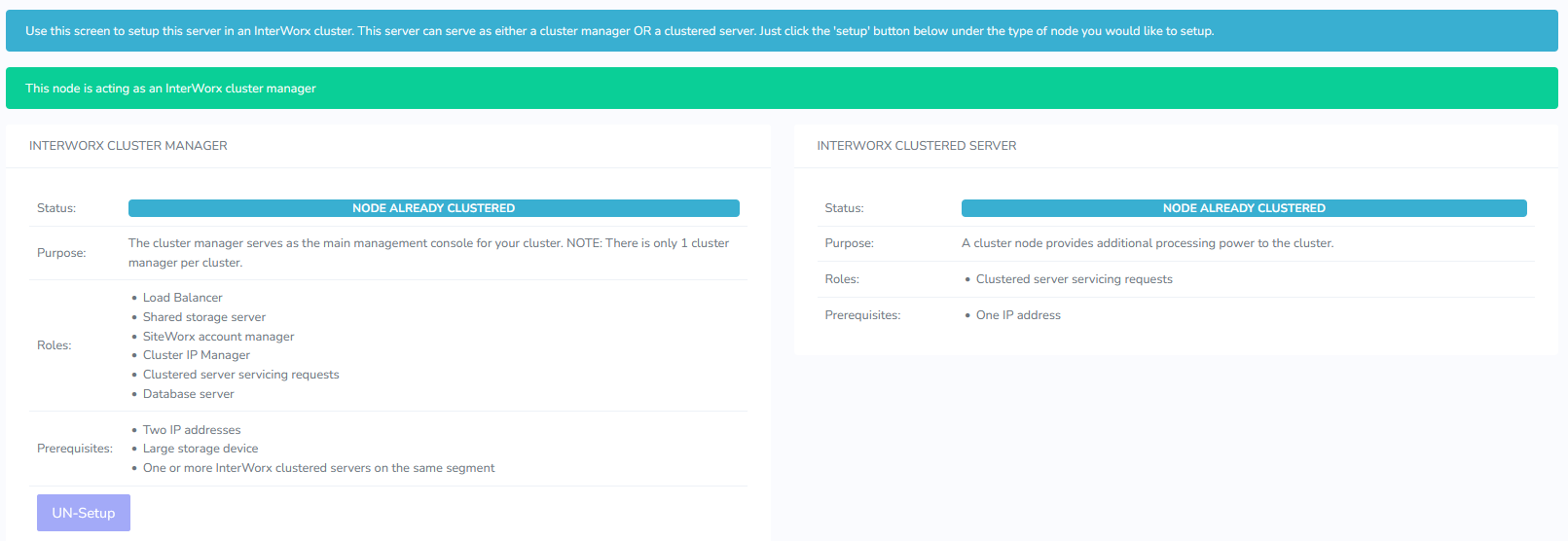
The Setup page is where Server Administrators can designate the server as either the Cluster Manager or a Node.
Detailed information on designating the Cluster Manager can be found here.
Information on designating a server as a Node can be found here.
Nodes
Clustering > Nodes

The Nodes page is where Server Administrators can add or delete Nodes connected to the Cluster Manager.
In InterWorx clustering, the Node is an NFS share to the Cluster Manager. Site data is not duplicated, though vhost files for the sites are created on the Nodes.
Once a Node is added to the cluster, it is no longer an independent server, and can only function within the cluster. New SiteWorx accounts cannot be added on the Nodes. New accounts must be created on the Cluster Manager.
Information on adding new Node can be found here.
Information on deleting a Node can be found here.
Load Balancing
Clustering > Load Balancing
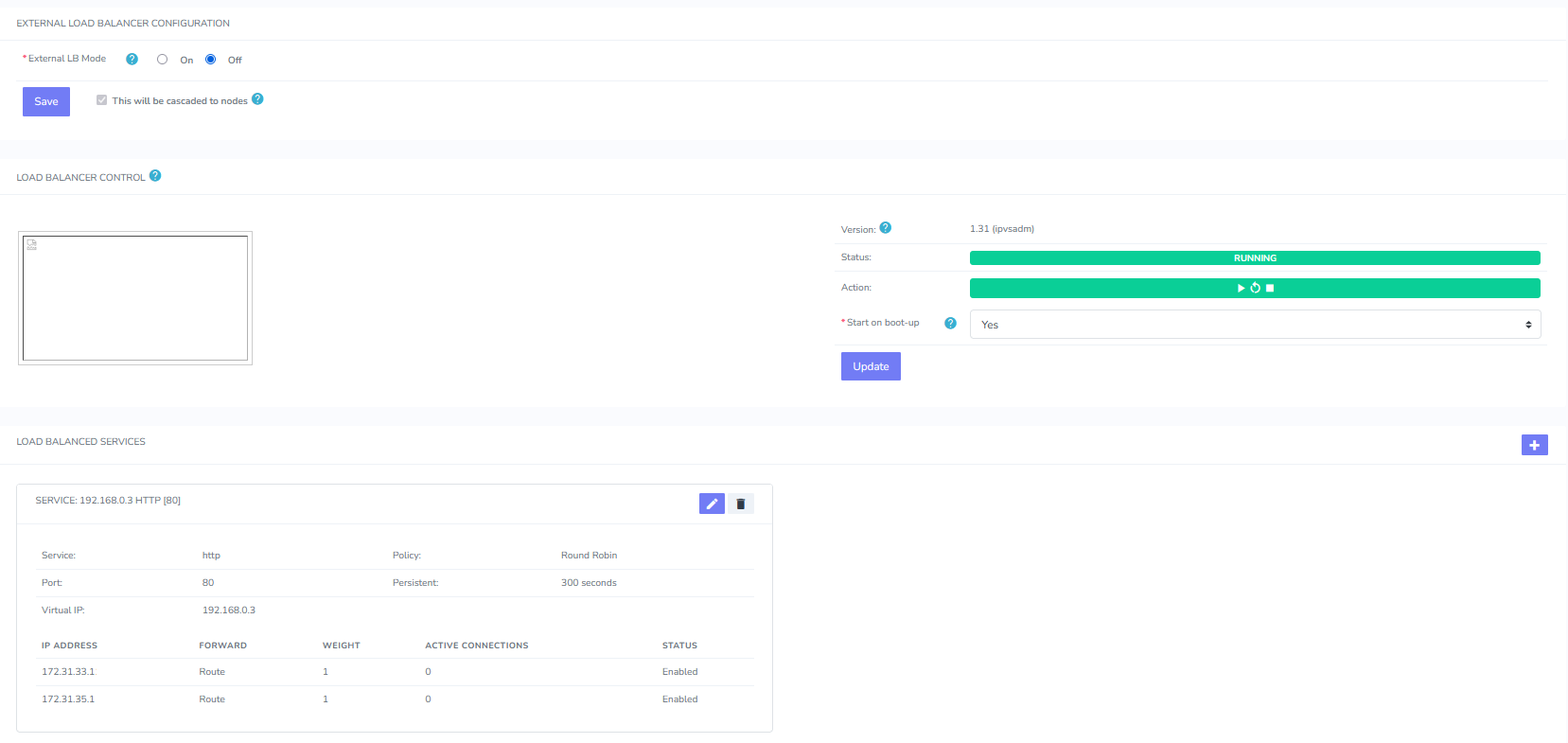
The Load Balancing page is where Server Administrators manage Load Balancing settings. It is also where the cluster can be assigned to use an External Load Balancer.
Services that can be load balanced are:
HTTP (port 80)
HTTPS (port 442)
SMTP (port 25 and 587)
POP3 (port 110 and 995)
IMAP (port 143 and 993)
As all clustered nodes serve as DNS servers automatically, load balancing of DNS services is not needed.
If a Node, or a service on the Node, goes down, InterWorx will remove the offending Node from the Load Balancing policy. This is done to prevent a percentage of requests to the server from failing. This does not effect the status of the websites or email services for the end user, as the service will fail over to the next Node or the Cluster manager. The node will be automatically be re-added to the Load Balancing policy when service is restored.
Detailed information managing Load Balancing settings can be found here.
Information using an External Load Balancer can be found here.
Node Status
Clustering > Node Status

The Node Status page is where Server Administrators manage the Node status and command queue for the cluster.
When performing tasks in NodeWorx, and any action that can be optionally replayed includes a “Cascade to Nodes” checkbox next to the Submit button. When “Cascade to Nodes” has been checked, the command is logged in the Command Queue, and will be replayed by the Nodes.
The Node Status page displays the status of each Node’s Command Queue as well as a history of which actions have been replayed. If a command queue action fails on a node, the queue processor halts, and tries the action again every 5 minutes, until it can be completed.
If an action failed, the Queue link will display the error that was returned. Once the error has been corrected, the command queue will restart.
Detailed information managing the Node status and command queue can be found here.